Tag: Efile Tips

Pro Online: Validation Errors Report

24 Jan 17
Kim Manuel
,
No Comments

As you progress through tax season, you will have a good idea about how long a return should be in the status of Transmitted.  If you detect returns in the status of Transmitted for more than a few hours, you should run your Validation Errors report.

0124 validation errors report

This will be a listing of returns that did not pass the secondary validation at the Processing Center.
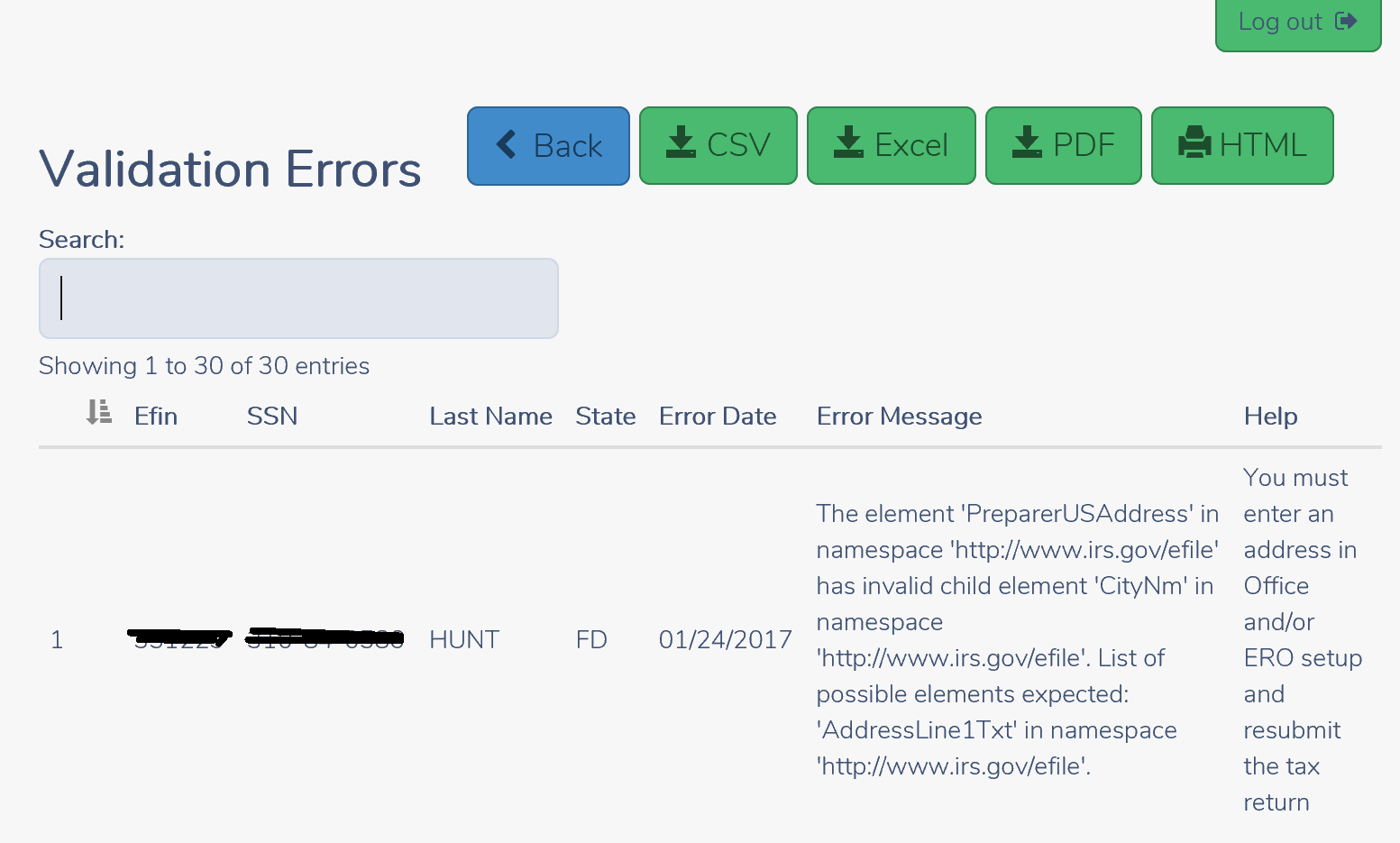
0124 validation screen

You have the option of  printing to HTML or PDF and exporting to a CSV or Excel File,  Most of the error messages will have a helpful tip as how to make the correction.

The next step is open the return and make the correction.  In the above case, once the address was added back to Office Setup and/or ERO setup, the next steps would be the following:

(1) Open the Return

(2) Select the E-file Section

(3) Click through the pages (they have already been completed the first time a transmission was attempted).

(4) When you get to the Submission page you have 2 options

Option 1 (Recommended) If the preparer/user conducting this task has the ability to Send to IRS Enabled in their Security Template, you can click

0124 save and transmit

You will then get a confirmation page that the return was transmitted. click Main Menu to return to the Welcome Page
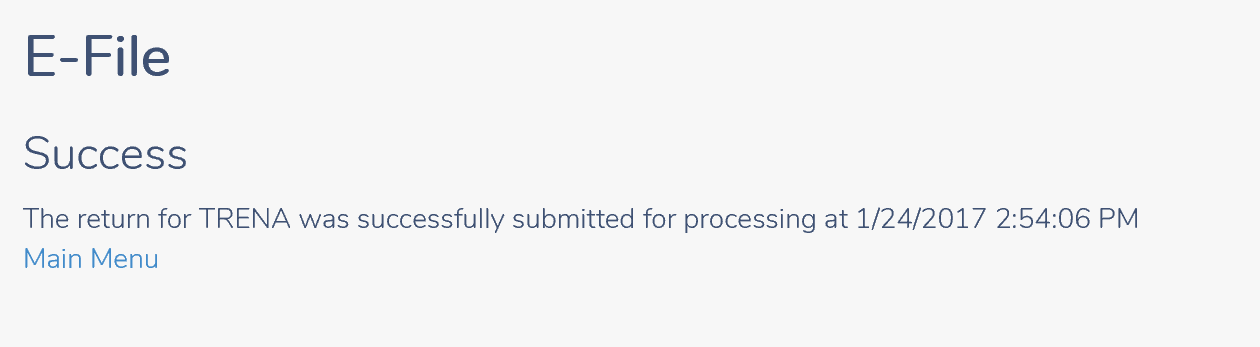
0124 save and transmit confirmation

Option 2: The preparer can open each return and go through the same process as above, when they get to the Submission page in e-file, we recommend that you select the option of Ready for Retransmit
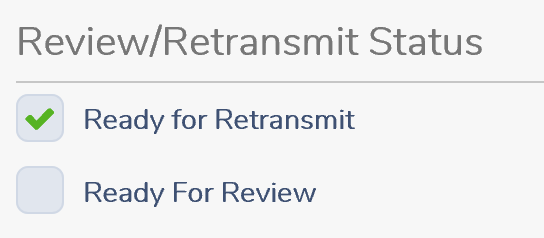
0124 ready to retransmit

Then select Save and Exit Return.  Once you have completed this for each return, you can send multiple returns from Transmissions.

Click Select on Transmissions

Reminder:  Only the returns with the status of Complete or Complete(Flagged for Retransmissions)

Click Add Returns

0124 add returns

Select the return(s) with the status of Transmitted (Flagged for Retransmit) and click Add Returns.  the return(s) will be removed from the window.  Click the X in the upper right hand corner.

0124 select flagged return (2)

This adds the return(s) to the normal transmission list.  Proceed as normal by selecting the Transmit to the IRS button.

Blog Posted 01/23/2017  3:15 PM EST


Pro Online: Office Setup and ERO Setup

24 Jan 17
Kim Manuel
,
No Comments

Warning:  DO NOT remove the street address from Office Setup and/or ERO Setup.

If you have removed the street address from Office setup, go to Configuration>> Office Setup and edit the Address field

If you have removed the street address from ERO setup, go to Configuration>> ERO Setup and edit the Address field

Your returns cannot be processed without a blank address.  We are in the process of Process Center Rejecting (Validation Error) any states that have been submitted to us with a blank address.

Below is an example of the Validation errors you will receive indicating the return is Processing Center rejected:


0124 validation errors removing address

Blog Posted 01/23/2017   10:21 AM EST

Pro Online: Rejected Returns Report

24 Jan 17
Kim Manuel
,
No Comments

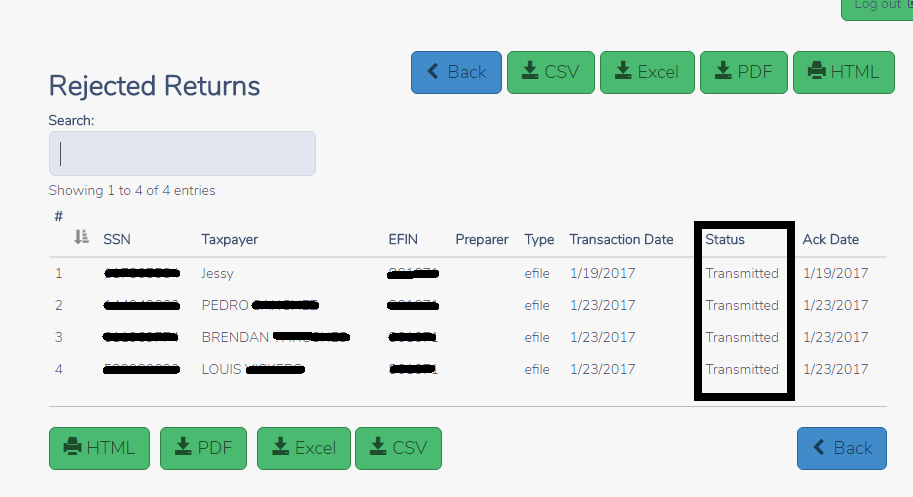
The rejected Returns report display a list of returns that have been IRS Rejected.  The Status column is currently showing ‘Transmitted’ instead of rejected

0124 Rejected Returns Report

Blog Posted 01/24/2017  8:53 AM EST

Pro Online Reports: IRS Acknowledgements and Old IRS Acknowledgements

24 Jan 17
Kim Manuel
,
No Comments

The following reports are now available

  • IRS Acknowledgements
  • Old IRS Acknowledgement

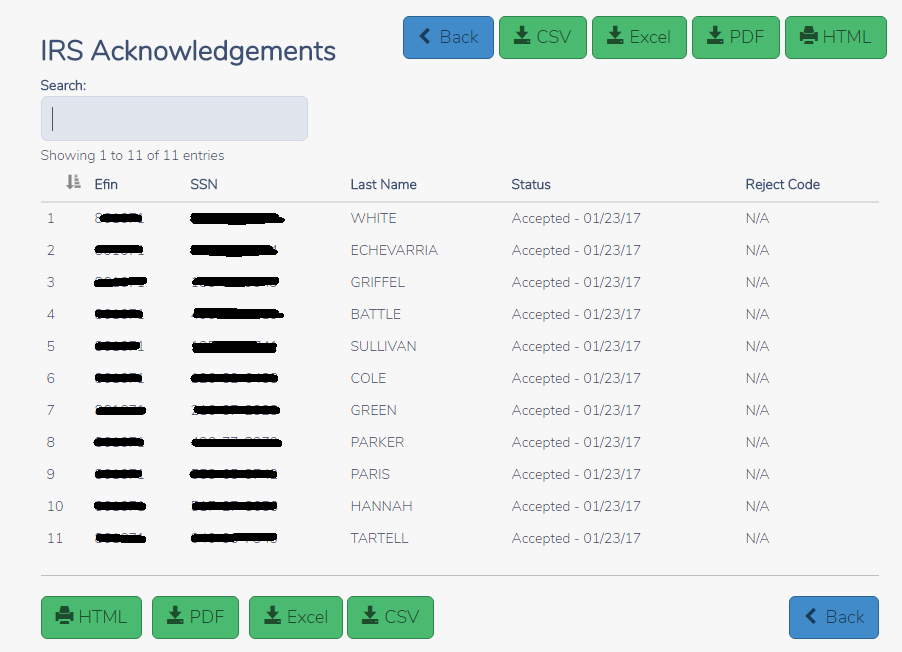
Click Select on IRS Acknowledgements to display the current acknowledgements that you have NOT previously viewed. Below is an example IRS Acknowledgement.  You can print the report via PDF or HTML or you can export the report to a CSV or Excel file.

0124 IRS Ack

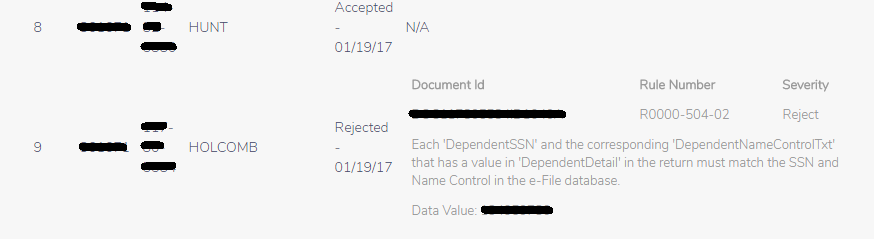
Below is an example of how detailed reject information displays on the IRS Ack or Old IRS Ack report.  This is the same information located for the return on their Client Status Page.

0124 irs ack with reject

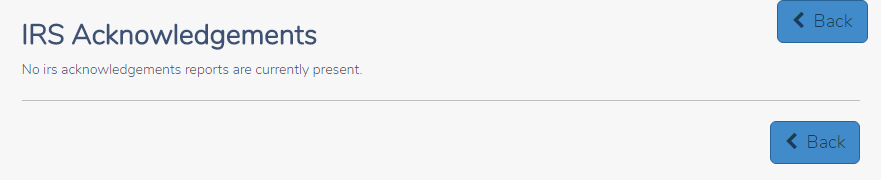
Once you have viewed the report or have NO current acknowledgements, you will see the following when you select IRS Acknowledgements:

0124 IRS acks no acks

Using Old IRS Acknowledgement Reports:  All viewed acknowledgements are automatically displayed in Old IRS Acknowledgements if you need to view them at a later time.

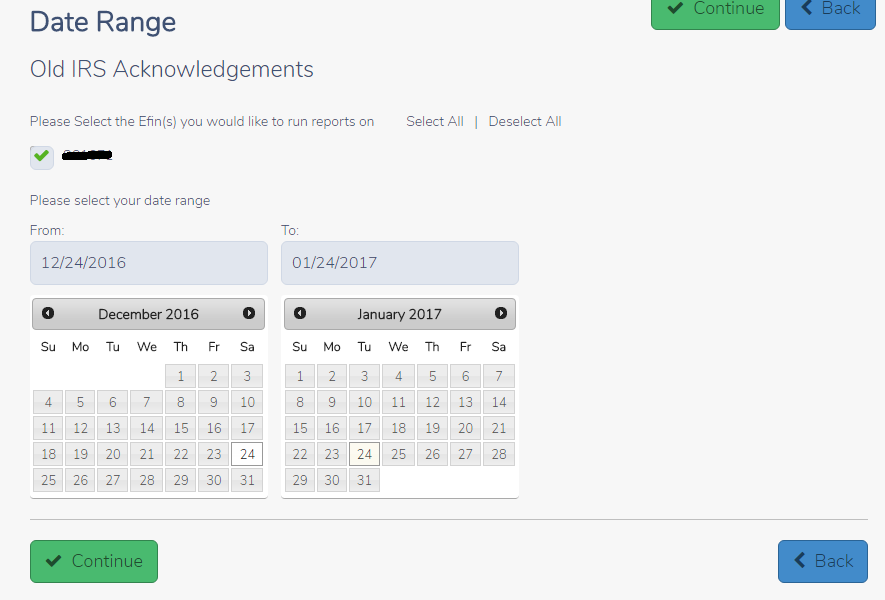
Select your date range to narrow down the list and Click Continue

0124 old irs acks

You will see a list of all the IRS acks within the date range.  You can search by SSN or name to more easily find the acknowledgement.  You also have the option print via PDF or HTML and export to a CSV or Excel file.

0124 old irs acks search by ssn