Category: Software News

MFA Verification Codes

03 Jun 19
Kim Manuel
,
No Comments

MFA Verification codes are currently not being sent via email.  We are working to resolve this.  They are being sent via text.

*If you have a Gmail account, check your SPAM/JUNK folder for the MFA e-mails. We are still working to resolve why they are being filtered into SPAM/JUNK for Gmail accounts.

TaxSlayer: Phone Support Update – 4/19/2019

19 Apr 19
Craig Smith
No Comments

We just wanted to mention that we are currently experiencing inclement weather in our area. You may experience delays or dropped calls when contacting support via phone due to the weather. E-mail and Chat support should not be impacted.

Message from TaxSlayer: Customer Support Hours

19 Apr 19
Craig Smith
No Comments

TaxSlayer VITA/TCE Support will be closed on Easter Sunday, 4/21/2019. Beginning Monday, April 22nd, off-season customer support hours will begin as follows:

  • Sunday: CLOSED
  • Monday-Friday: 8am-5pm ET
  • Saturday: CLOSED

TaxSlayer Pro Online: 2018 Amended Return User Guide

03 Apr 19
Craig Smith
No Comments

This is always a good time of the tax season where the need of an amended return tends to come into play. Taxpayers received a late form they weren’t expecting or had forgotten about (W-2, 1099, etc.) and they now need to prepare and file an amended return. For this reason, we wanted to share the 2018 Amended Return User Guide as a refresher for volunteers. Please click here to download the user guide on how to prepare an amended tax return using TaxSlayer Pro Online.

VITA/TCE Volunteer Tax Alert (VTA): Qualified Business Income Deduction prior (QBID)

02 Apr 19
Kim Manuel
No Comments

Purpose:  To provide an update regarding the Qualified Business Income Deduction (QBID) on returns prepared prior to the TaxSlayer update on February 6th, 2019.

Click here to download PDF

Which report should I use to identify potential returns?

We recommend you use the Site Production Detail Report – Electronic and/or Site Production Detail Report – Paper

  • Navigate to Management Reports
  • Select the Report
  • Narrow the number of returns by filtering your dates from a begin in January when your site started preparing returns and an end date of February 7th
  • Choose either Run Report or Run Report to Export (You are eventually going to want to export this)
  • You will need Excel to open the exported CSV file
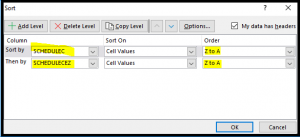
  • You can now sort on the Schedule C and/or Schedule CEZ

Below is how you can sort them at the same time:


This will result in the returns with a Schedule C and/or CEZ at the top of the list


  • Now that you have a smaller subset of returns, you can verify the start date and the refund/balance due from the report.

Will the return automatically recalculate when I open it?

Yes, the return will automatically recalculate if necessary

TaxSlayer Pro Online: 2017 Returns Receiving “Unexpected Error” (RESOLVED)

01 Apr 19
Craig Smith
No Comments

10:06am ET – All deployments have been released and access to 2017 returns for those that had issues should be resolved at this time.


10:00am ET – Deployments for 2017 are still going out, however, you will gradually see the issue resolved as the deployments continue.


9:36am ET – Deployments for 2017 are currently going out at this time.


9:00am ET – Our engineers are actively investigating the root cause at this time.


8:45am ET – We have received reports of users receiving “Program Has Received Unexpected Error” message when attempting to open a 2017 return from the Client List. We are actively looking into this issue.
End of Season: Did all of my State returns get electronically filed?

28 Mar 19
Kim Manuel
No Comments

How can I determine which state returns were electronically filed and which state returns were marked as Paper?

We recommend running the Pro Web Returns – Detailed Return Report located under Management Reports


  • Defaults to Tax Year 2018
  • Enter a Start Date and End Date
  • Select the checkmark next to the EFIN

You can either select Run Report or Run report for Export.  Either way, you may want to export the data so you can sort it

What information does this report give me?

  • Group Name (Will be blank)
  • EFIN
  • Last 4
  • First Name
  • Last Name
  • Status (status of the federal return)
  • Federal Return Type (e-file, paper, direct deposit, direct debit, etc)
  • Federal Refund (negative if balance due)
  • State (state abbreviations…If the return had more than 1 state, the return will have multiple rows)
  • State return type
    • You are looking for Paper or PR with ??
  • State Refund
  • Stated date (date return was started)

Can I filter the columns?

Yes, each column allows you to sort in Ascending or Descending order.  You can also filter by selecting a certain criteria such as Paper or PR

The filter below on the state return type column will display a list of all returns where the state was marked as paper


You can now export this filtered list so it is easier for you to work with


End of Season: Filing Season Deadlines

26 Mar 19
Kim Manuel
No Comments

The IRS Core team has posted the following TY 2018 Due Dates

Click here to download Due Dates