We have added a Last Checkpoint button on the Summary/Print page.

This feature will take the user back to the last form that was accessed before coming to the Summary/Print page.
Blog posted 10/05/2017
We have added a Last Checkpoint button on the Summary/Print page.

This feature will take the user back to the last form that was accessed before coming to the Summary/Print page.
Blog posted 10/05/2017
Scenario: My phone is setup to receive text messages, however, I am not receiving the text messages with my verification code.
We want to pass along a few things we have heard worked for other volunteers:
While we cannot assist in troubleshooting why the messages are not being received, we will continue to post the information we receive from other volunteers.
blog posted 09/27/2017 8:14 am EST
Scenario: I have completed the Account Update page and marked my cell phone number to allow for multiple users. I then completed the Account Update page and successfully entered the same cell phone number for my 2nd username. Now, I am receiving an error that the cell phone number must be unique for the third user name.
Work Around: Go back and check the cell phone box in the original username. You will need to do this when you attempt to update each third username.
Solution: We will make a fix and release it.
Blog posted 09/22/2017
Scenario: The volunteer has multiple usernames because they work at multiple sites or prepare returns for the main site and its Ad Hoc Sites?
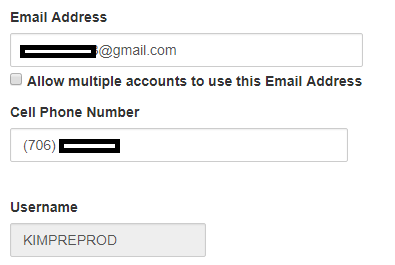
A1: Yes. You will follow the same procedures that you do for allowing multiple user names per email address. Once the user has updated their information with their cell phone number, there is a selection box in the user’s Preparer Setup Menu to allow for multiple user names for the cell phone number. See example below:
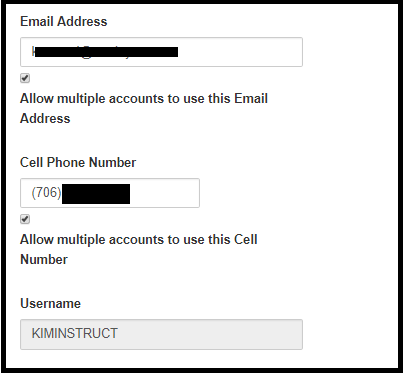
Q2: A user that has the ability to access Configuration>>Preparer(s) Setup needs to do the following:
(1) Edit the username that has the cell phone number and select the box for Allow multiple accounts to use this Cell Number.
(2) Edit the additional user name(s) that need to be associated with the cell number, enter the cell number and save the information.
Blog Posted 09/21/2017
Scenario: I setup the same username for Pro Online and My Account. I logged into My Account prior to logging into Pro Online. I am now getting an error message that the username is already in use.
A1: You should login with the username associated with your production site. Once you do this, you will need to access the Preparer(s) Menu setup page and select the box to allow for multiple usernames to be associated with your email address.

A2: Send an email to vita support with the username and email address. We will need to sync the accounts for you
Blog posted 09/19/2017
Scenario: I received my new authentication code, entered it and accidentally hit Send Code instead of Verify
A1: No, you will need to use the 2nd code sent to you. Clicking Send Code automatically nullified the first code sent.

Blog Posted 09/14/2017
A1: Yes, you are authenticating to login to the application. If your security template allows you to have access to all years, the authentication applies to any tax year you have access to.
A2: No, unless this coincides with the expiration of your existing authentication.
Blog Posted 09/14/2017
Scenario: I have a multi-site or relational login assigned to me so I can manage other sites. I also have a site login for my production site(s)
A1: You should login with the username associated with your production site. Once you do this, you will need to access the Preparer(s) Menu setup page and select the box to allow for multiple usernames to be associated with your email address.

A2: You will need to contact support via email with your multi-site or relational login username so they can mark the selection that will allow you to utilize your email address for multiple usernames.
Blog posted 09/13/2017