Author Archives: %s

Multi Site Admin (MSA): Your Welcome Page

26 Dec 16
Kim Manuel
, ,
No Comments

You have received your login credentials for your Multi-Site Admin group account.  This allows you to create configurable items and assign them to the sites that are listed under your MSA group.

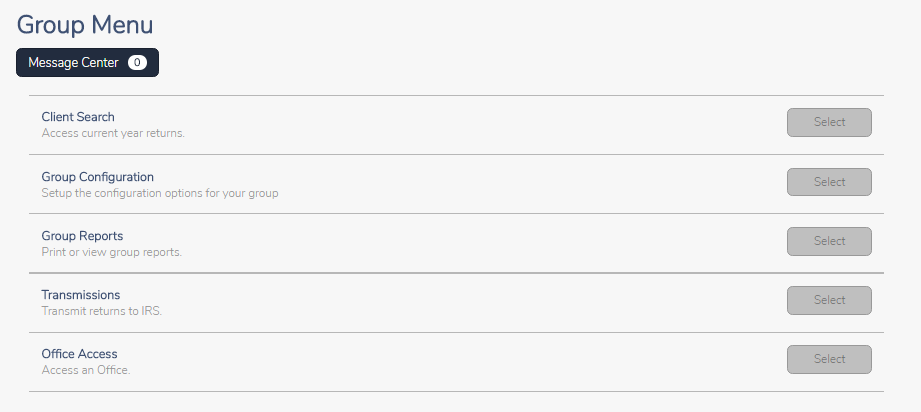
You will have access to Group Configuration when you login.

1226-msa-login

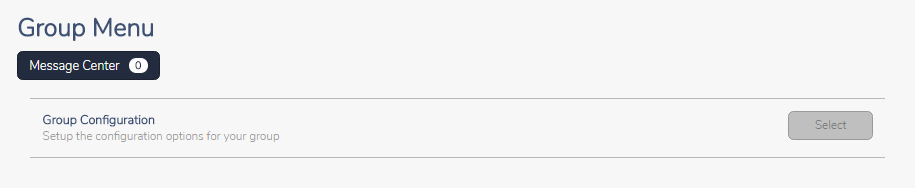
Click Select to access the Configuration Menu.  The items located on the Configuration Menu allows you to create items and assign it to other sites under your MSA umbrella.

1226-msa-configuration-menu

Pro Online: 1040X Training video and Mini Guide

06 Dec 16
Kim Manuel
, ,
No Comments

Click here to review the 1040X Training video and download the corresponding mini guide

Desktop: Office Identifier

01 Dec 16
Kim Manuel
, ,
No Comments

Purpose:  The Office Identifier is a number generated by TaxSlayer.  This is a Vendor Control Number required for electronic filing.  The field must be present in the-e-file for acceptance.  The goal is for the IRS to validate the number in the e-file with the number uploaded by the software vendor.

Question:  Where is this located?

Answer:  The field will be displayed on your Office/Firm Setup screen where you enter your Firm Information.

Question:  How do I find the office identifier

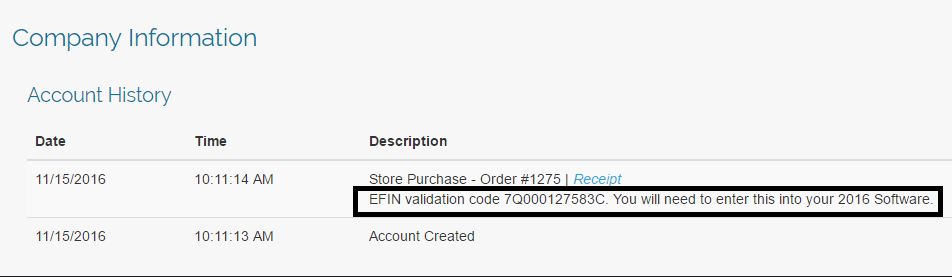
Answer:  Login to My Account from the VITA/TCE Springboard with the username and password you established via the User Information email link.  (Links will be sent by COB 12/02/2016) Once you are logged in, select Account History on the left navigation bar.

my-account-account-history

Question:  Is this  number unique to my site?

Answer:  Yes, it is unique to the EFIN.

Question:  Will this number ever change?

Answer: The number will change if the EFIN associated with your site changes


Pro Online: Office Identifier

01 Dec 16
Kim Manuel
, , ,
No Comments

Purpose:  The Office Identifier is a number generated by TaxSlayer and imported into a field in ERO Setup.  This is a Vendor Control Number required for electronic filing.  The field must be present in the-e-file for acceptance.  The goal is for the IRS to validate the number in the e-file with the number uploaded by the software vendor.

Question:  Where is this located?

Answer:  On the ERO screen in Configuration

office-efin-identifier

Question:  I deleted it or it was not present when I edited ERO Setup.  How do I find out what the control number is?

Answer:  Login to My Account from the VITA/TCE Springboard with the username and password you established via the User Information email link.  Once you are logged in, select Account History on the left navigation bar.

my-account-account-history

Question:  Is this  number unique to my site?

Answer:  Yes, it is unique to the EFIN.

Question:  Will this number ever change?

Answer: The number will change if the EFIN associated with your site changes

Question:  Do I need to add an additional ERO to my site?

Answer:  No, you can modify the information imported if you need to change the site name and/or address associated with the imported ERO setup.

Relational EFIN holders: What to expect

18 Nov 16
Kim Manuel

No Comments

The email with the web link is to activate your site.  It IS NOT the username that  you will use to create configurable items to assign to the other sites  you are responsible for setting up or run group reports.

You will be getting an email from the regular VITA support email address with your group login and default password information.   You will receive a groupadmin login and an (1) alternate groupadmin login

These may come a few days after you receive your site activation email (Remember:  Patience is a virtue)

Note:  Those that have a relational EFIN are required to use the Reporting Consent.  TaxSlayer will be assigning this consent to all of your sites as a required Consent.

Multi-Site Administrators: What to expect

18 Nov 16
Kim Manuel

No Comments

The email with the web link is to activate your site.  It IS NOT the username that  you will use to create configurable items to assign to the other sites  you are responsible for setting up.

You will be getting an email from the regular VITA support email address with your group login and default password information.   You will receive a groupadmin login and an (1) alternate groupadmin login

These may come a few days after you receive your site activation email (Remember:  Patience is a virtue)


View and Print Return in Spanish

07 Nov 16
Kim Manuel
, ,
No Comments

Viewing and printing returns in Spanish is determined at the return level.

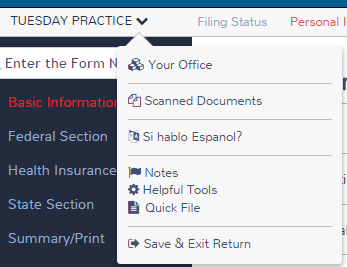
Select the drop down arrow next to the taxpayer’s name and then select Si hablo Espanol?

change-to-spanish

Select Espanol

spanish-select-it

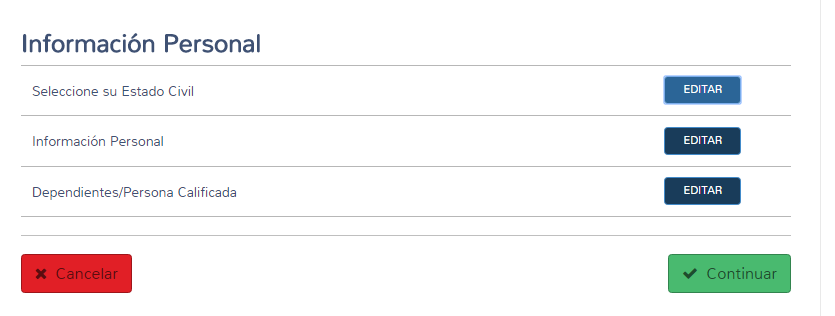
The screen will display in Spanish

spanish-personal-information

The forms will also print in Spanish.  There is currently an issue with the Spanish print utilizing the wrong year form.  This will be corrected


Reactivating Returns: New Feature

07 Nov 16
Kim Manuel
,
No Comments

Purpose: Preparer starts a return with a SSN that was previously deactivated/deleted

They will get the following screen

reactivate-return

Note:  This is site specific and is not available in the Practice Lab.

Selecting Reactivate will retain all of the information that was previously in the deactivated/deleted return and will open to the Summary page

Selecting Remove and Create New will discard the information entered in the deactivated/deleted return and will open to the Filing Status page in the Basic Info section.