Category: Software News

FAQ: Pro Online Relational EFIN Consents

21 Oct 17
Kim Manuel
,
No Comments

The following were questions asked during our Administrative Webinar:

Q: If I order software that contains a relational EFIN, will the relational consent automatically show up in each return or do I need to add it?

A:  The Relational Consent will be assigned to the sites by TaxSlayer.

Q:  What is the purpose of the assigned Relational consent?

A:  This is what allows TaxSlayer to share taxpayer information with the main Relational EFIN for the purposes of running reports.

Q: Can an assigned Consent be modified?

A:  No, assigned consents cannot be modified.

Q: What does the system actually do if folks do not consent to relational EFIN?

A:  The efile cannot be created and the return will have to be paper filed.

Q:  Will the pin auto filled for those consents?

A:  No, the PIN for consents cannot be automatically generated

Q:  Is the Relational EFIN scenario applicable to desktop users?

A:  No, it is only applicable to Pro Online users.

Blog Posted 10/21/2017

FAQ: Pro Online Client List

20 Oct 17
Kim Manuel
,
No Comments

The following were common questions asked during our Site Administrative Webinar:

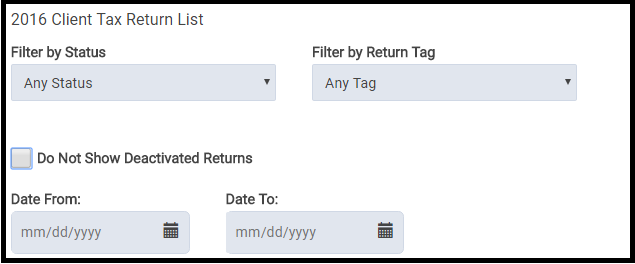
Q:  Will the date the tax return was created be displayed on the client list?

A:  No, but you can easily filter the returns by date.
Q:  Can you transfer a prepared return to another user?

A:  Yes, if the user has the appropriate rights enabled in their security template, the preparer can be changed from the Tools drop down on the Office Client List.  Select Change Preparer from the drop down list and then select the appropriate preparer to change the return to:

 Q: Will paper return show as paper return this year?

A:  Yes, it also currently shows as paper for TaxSlayer 2016 if the return type in e-file for the federal return is marked with a paper option.

Q: Is there any way to “lock” a return after it has been quality reviewed so nobody but admins can get back into it?

A: No, but there is a new feature that allows the site admin to restrict who can see a return once it has been accepted so no changes can be made to it.  Another option would be to password protect the returns.  This will prevent the user from editing the return, printing the return, or seeing the information listed in Client Return History.

Blog Posted 10/20/2017

Pro Online: Changes to Preparer setup

19 Oct 17
Kim Manuel
,
No Comments

We have removed the Security Answer and Security Question from Preparer Setup.

Why were they removed?

These are no longer required with the implementation of Multi-Factor Authentication.  The user is now required to receive an authentication code when they select Forgot Password that will be sent to the either the email or cell phone number that is listed in their user account.

Blog Posted 10/19/2017

MFA: Multiple Users sharing 1 Computer (Series 2, Part 8)

18 Oct 17
Kim Manuel
,
No Comments

Q:  If my site has multiple users that share the same computer, will each user have to authenticate?

A:  Yes, each user will be required to complete their own MFA verification the first time they login using the computer.  Afterwards, their verification will be effective until the established expiration period, even though other users are accessing TaxSlayer from the same computer

Practice Lab/Pro Online: Last Checkpoint Button (Live in Production)

05 Oct 17
Kim Manuel
, ,
No Comments

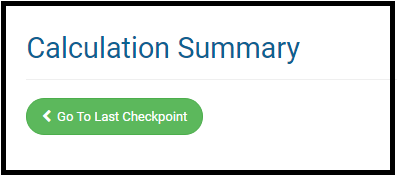
We have added a Last Checkpoint button on the Summary/Print page.

This feature will take the user back to the last form that was accessed before coming to the Summary/Print page.

Blog posted 10/05/2017

MFA: My cell phone is not receiving the verification code (Series 3, Part 6)

27 Sep 17
Kim Manuel
,
No Comments

Scenario:  My phone is setup to receive text messages, however, I am not receiving the text messages with my verification code.

We want to pass along a few things we have heard worked for other volunteers:

  • Your phone is setup to block short code text messages
  • Contact your carrier’s technical support to see if they can assist you with receiving the messages
  • Power down your phone and turn it back on

While we cannot assist in troubleshooting why the messages are not being received, we will continue to post the information we receive from other volunteers.

blog posted 09/27/2017  8:14 am EST

MFA: Allowing Multiple Users per single Cell phone (Series 3, Part 5)

22 Sep 17
Kim Manuel
,
No Comments

Scenario:  I have completed the Account Update page and marked my cell phone number to allow for multiple users.  I then completed the Account Update page and successfully entered the same cell phone number for my 2nd username.  Now, I am receiving an error that the cell phone number must be unique for the third user name.

Work Around:  Go back and check the cell phone box in the original username.  You will need to do this when you attempt to update each third username.

Solution:  We will make a fix and release it.

Blog posted 09/22/2017

MFA: Ability to attach multiple user names to a cell phone (Series 2, Part 7)

21 Sep 17
Kim Manuel
,
No Comments

Scenario:  The volunteer has multiple usernames because they work at multiple sites or prepare returns for the main site and its Ad Hoc Sites?

Q1:  Can I link the user names to the same cell phone number?

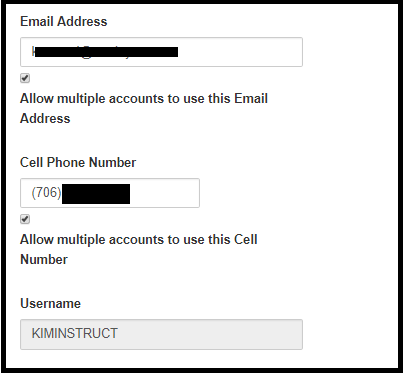
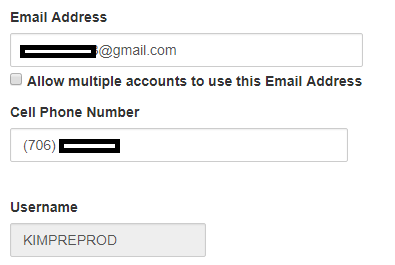
A1:  Yes.  You will follow the same procedures that you do for allowing multiple user names per email address.  Once the user has updated their information with their cell phone number, there is a selection box in the user’s Preparer Setup Menu to allow for multiple user names for the cell phone number.  See example below:

Q2:  I have already completed the Update Account information for my username and left the cell phone number blank because it was not unique…what should I do?

Q2:  A user that has the ability to access Configuration>>Preparer(s) Setup needs to do the following:

(1) Edit the username that has the cell phone number and select the box for Allow multiple accounts to use this Cell Number.

(2) Edit the additional user name(s) that need to be associated with the cell number, enter the cell number and save the information.

Blog Posted 09/21/2017