Category: Software News

1040NR Validation error: AppLawfulPermanentResidentInd

17 Apr 17
Kim Manuel
,
No Comments

If your 1040NR return is still in the status of “Transmitted” make sure you run your Validations Errors and Old Validation Errors Report.

For this particular validation error, there are a couple of things for you to look at:

  • Navigate to the Schedule OI and make sure a country has been entered for the Citizenship country and the foreign tax residence country
  • Navigate to the Schedule OI and make sure the VISA type has been completed


Blog Posted 04/17/2017   9:31 AM ESt


Management Reports — Site Production Detail Report

14 Mar 17
Kim Manuel
,
No Comments

We made a change that now allows the report to reflect the appropriate amounts for EITC, Additional CTC, and CTC for returns that were displaying overstated values.

Blog Posted 03/14/2017    9:25 AM EST

Pro Online: The “Quick File” Process in TaxSlayer

02 Mar 17
Kim Manuel
,
No Comments

After entering the basic information from Form 13614-C, Quick File allows you to add only the source documents from Form 13614-C to the tax return. This allows you to skip the other menus within the software and go directly to the added source documents uploaded to Quick File, one-by-one.

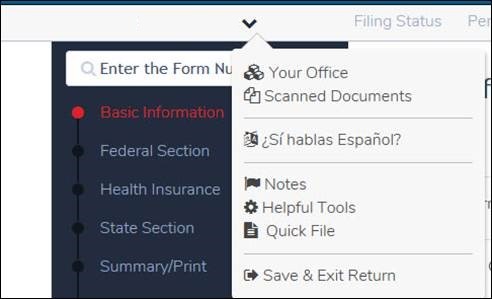
To access Quick File, click on the drop down menu next to the taxpayer’s name as shown below:

Select “Quick File” and type in all source documents included in the tax return per Form 13614-C (in the order you want to enter the information).  Below is an example of using Quick File after entering the Basic return information

Click “Continue” at the bottom of the screen once all source documents are added.  This will allow you to enter only the documents provided by the taxpayer without moving through the other menus.

NOTE: After adding the Basic tax information, you may also go to “Summary/Print” and click on the line on Form 1040 to enter data without going through the menus for direct entry to Form 1040.

Blog Posted 03/02/2017    11:03 AM EST


Returns Awaiting Acknowledgement Report

05 Feb 17
Kim Manuel
,
No Comments

List of returns with an outstanding federal and/or state acknowledgement.

(1) Select Reports

(2) Select Management Reports.  This will pop up in a separate window.  Allow this in your pop-up blocker

(3) Select Returns Awaiting Acknowledgements

(4) Defaults to 2016.  Change default date range if applicable

(5) Select EFIN Selection and select the EFIN (even if only 1)

(6) Select Run Report or Run Report for Export

Note:  Run Report for export will display a few lines of the report on the screen

(7) Review the report

Sort the columns

At this point, you can export the report to a CSV file or select Web Reports from the upper left corner to run additional reports.

Blog Posted 02/05/2017   9:12 PM Eastern

Information on what to do if Calculations are not rendering:

28 Jan 17
Kim Manuel
No Comments

This was posted related to the interruption of service with real-time calculations we had on Saturday, January 28, 2017

Background:  On Saturday, January 28, 2017 at 11:53 AM EST, TaxSlayer experienced an interruption in service. This issue prevented the software from performing real-time tax calculations. However; sites still had the ability to input the taxpayers return information in the software without turning taxpayers away.  As a result of this issue:

  • The application was not displaying the refund/balance due as users were entering data in the return
  • Users were unable to print

This issue was addressed and resolved by the TaxSlayer development team and the tax calculations were again performing properly at approximately 1:00 PM EST .


How do I know if the calculations are not available and not rendering data?

  • When you open a return or navigate to Summary/Print and the return continuously displays calculating

What does calculations not available and not rendering data mean?

  • The application is not displaying the refund/balance due as you are entering data in the return in real time.

What can I do when the calculations are not available and not rendering data?

  • If you are on the Summary/Print page when opening the return, select the menu icon in the upper left corner and select Basic Information
  • This will allow you to continue entering data
  • You can continue creating new returns.  You can enter the data that the taxpayer has brought you.  You will not be seeing the refund/balance due change across the top bar while you are doing this.

Will the return calculate based on the information entered when the calculations are available?

  • Yes.  Opening the return will kick off the calculations and the return will render updated calculations.

Can I print the return when the calculations are not Available?

  • No because the return kicks off a calculation each time  you print it.
  • Once the calculations are available, you will be able to print the return

What items are not available to me when the calculations are not available?

  • Completing the e-file section of the return
  • Printing the return

The application is designed to allow you to continue preparing returns and working in your site doing administrative type functions.

Blog Posted 01/28/2017    3:18 PM EST

Imperfect Return Indicator — What is it?

27 Jan 17
Kim Manuel
, ,
No Comments

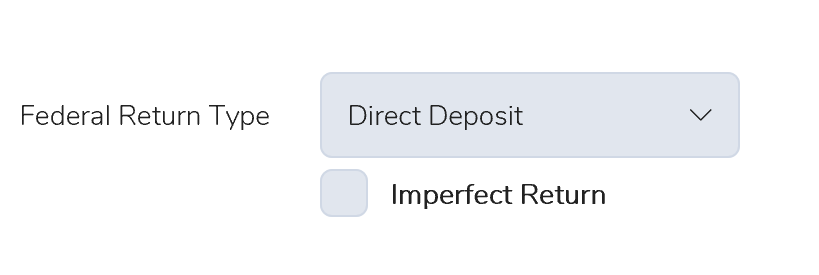
If your federal return is rejected for a SSN/Name Control business rule, you will see the Imperfect Return option appear under the Federal Return type on your e-file page.

0127 Imperfect Return

We give the preparer the choice of working with the taxpayer to make this correction or allowing the IRS to make the the correction.  If selected, an “Exception” status indicates to the IRS that the return was previously rejected for the business rule.  The IRS will continue to process the return and a notice will be sent to the taxpayer advising them of any change made as a result of the Imperfect Return indicator.  This prompts the IRS system to match the information from previously accepted returns.  The returns with the Imperfect Return indicator are typically processed in 4-6 weeks after acceptance.

Disadvantages of Using the Imperfect Indicator;  The IRS matches the information on the back end the site is unaware of the match changes to make corrections on the return.  This will result in the same data being carried forward next year and the return being rejected for the same business rule.


Blog Posted 01/27/2017  7:50 AM EST


Pro Online: Illinois Scenario Page and E-file Scenarios

25 Jan 17
Kim Manuel
, , ,
No Comments

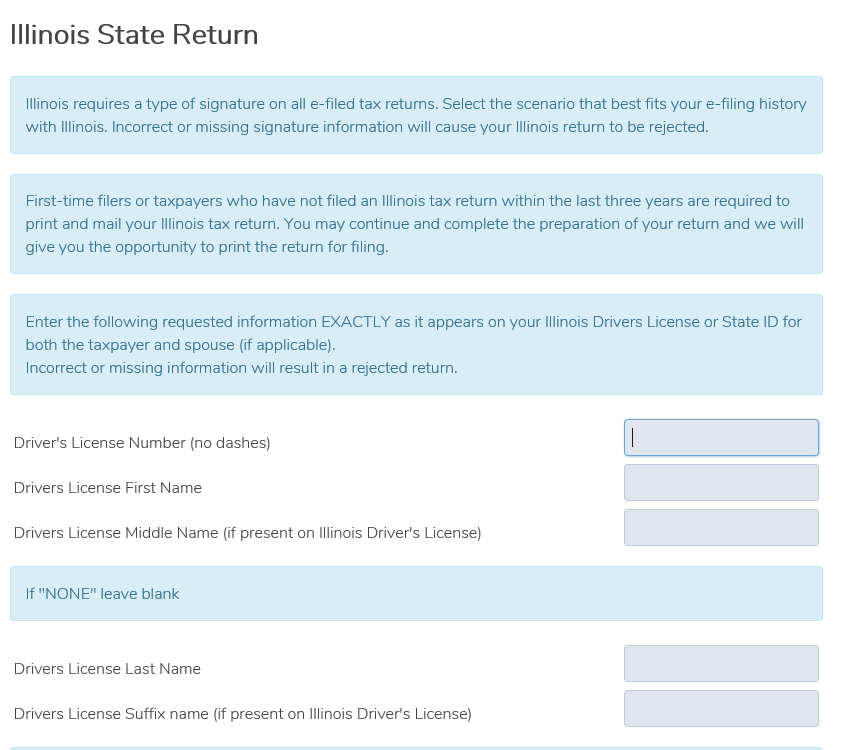
You DO NOT  have to nor need to complete the IL short view page.  Click Continue to proceed through the page.  It is not required for electronic filing purposes for VITA/TCE.

0125 IL SHORT VIEW PAGE

The E-filing Information page under Enter Myself is also not applicable for VITA/TCE.  You are not required to complete the page.

0125 IL personal information section

Blog Posted 01/25/2017  8:14 AM EST

Pro Online: Validation Errors Report

24 Jan 17
Kim Manuel
,
No Comments

As you progress through tax season, you will have a good idea about how long a return should be in the status of Transmitted.  If you detect returns in the status of Transmitted for more than a few hours, you should run your Validation Errors report.

0124 validation errors report

This will be a listing of returns that did not pass the secondary validation at the Processing Center.

0124 validation screen

You have the option of  printing to HTML or PDF and exporting to a CSV or Excel File,  Most of the error messages will have a helpful tip as how to make the correction.

The next step is open the return and make the correction.  In the above case, once the address was added back to Office Setup and/or ERO setup, the next steps would be the following:

(1) Open the Return

(2) Select the E-file Section

(3) Click through the pages (they have already been completed the first time a transmission was attempted).

(4) When you get to the Submission page you have 2 options

Option 1 (Recommended) If the preparer/user conducting this task has the ability to Send to IRS Enabled in their Security Template, you can click

0124 save and transmit

You will then get a confirmation page that the return was transmitted. click Main Menu to return to the Welcome Page

0124 save and transmit confirmation

Option 2: The preparer can open each return and go through the same process as above, when they get to the Submission page in e-file, we recommend that you select the option of Ready for Retransmit

0124 ready to retransmit

Then select Save and Exit Return.  Once you have completed this for each return, you can send multiple returns from Transmissions.

Click Select on Transmissions

Reminder:  Only the returns with the status of Complete or Complete(Flagged for Retransmissions)

Click Add Returns

0124 add returns

Select the return(s) with the status of Transmitted (Flagged for Retransmit) and click Add Returns.  the return(s) will be removed from the window.  Click the X in the upper right hand corner.

0124 select flagged return (2)

This adds the return(s) to the normal transmission list.  Proceed as normal by selecting the Transmit to the IRS button.

Blog Posted 01/23/2017  3:15 PM EST