Author Archives: %s

Multi-Factor Authentication: What is it?

16 Aug 17
Kim Manuel
,
No Comments

What is MFA (Multi-Factor Authentication)?

Utilizing something other than what you know to authenticate yourself.  An example of MFA already in use by the IRS SPEC employees is the requirement to use your badge as a factor of logging in to their computer.

Why implement MFA?

Due to the heightened awareness of personal identity theft and the growing world of cyber threats, TaxSlayer will be implementing MFA to their Professional Web-based product, TaxSlayer Pro Online.  These changes will fall in line with the IRS’s release of the Security Summit’s guidance.  With the VITA/TCE sites using borrowed computers and/or computers in locations such as libraries and community centers, MFA will add an additional layer of protection to mitigate the risk of identity theft from cyber intrusions.

What is the implementation plan?

The first time a user logs in to a unique device with TaxSlayer Pro Online 2017, they will be required to go through multi-factor authentication.  They will have the option of receiving the authentication code via email or text.

What can sites do now to start preparing?

Review the active users currently setup at your site to ensure they have unique email addresses.  The MFA system will validate the uniqueness of the email address during the authentication process.  Receiving a text message with the code is also an option and will also require a unique cell phone number.

What if the preparer volunteers at multiple sites and has multiple usernames tied to their email address?

We are in the process of designing a process that will allow for this scenario that will be in place prior to the release of TaxSlayer Pro Online 2017.

Staying in the Loop.

We will be creating educational and training posts over the next few months to keep everyone updated.  Protecting your taxpayer’s data is a top priority for TaxSlayer.

Blog Posted 08/16/2017


Pro Online: Changing “Complete” Status to “In Progress” (Live in Production)

14 Aug 17
Kim Manuel
,
No Comments

Site Administrators will have the ability to change a return with the status of Complete back to In Progress prior to tax season.  This feature can be assigned to other uses via Security Templates to more easily manage returns.

Allowing the feature in Security Templates

A new item has been added to Security Templates.  It will be defaulted to true, which will prevent any user from doing this until the Site Administrator allows access

Below is the item as default which = the user cannot change the return status

Below is the item enabled by the site administrator which = the user can change the return status from “Complete” to “In Progress”

Note:  This is also an easier method if you need to delete a return marked as “Complete”.  You will now have the ability to go from “Complete” to “In Progress” and then ” Deactivate” (all based on the Security Template applied to the user).

Changing the Complete Status

Below is an example of a return from the client list that has the status of “Complete”:

The user with the appropriate Security Template, will open the return and navigate to the Submission page in the e-file section of the return.  Below is an example of what the screen will look like:

Click Yes to change the status back to “In Progress”.  Below is an example of what the screen will look like after clicking Yes:

Save and Exit the return.  Below is an example from the client list after the status has been changed:

Note:  The return can be marked “Complete” again after this process has been used.

Blog Posted 08/14/2017


Pro Online: Changing the Order of Custom Answers (Live in Production)

26 Jul 17
Kim Manuel
, ,
No Comments

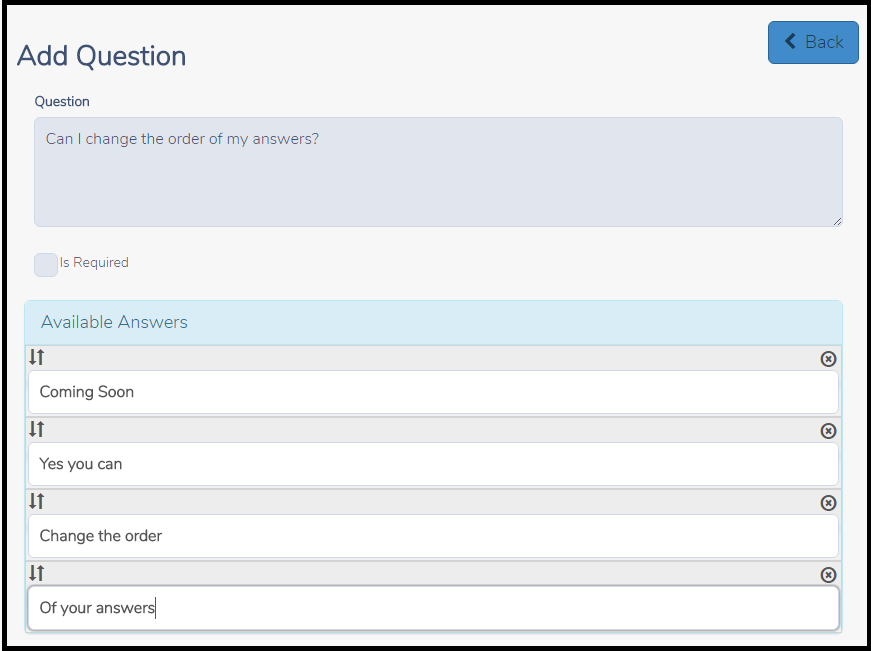
The ability to change the order of how the answers display for the custom questions created at your site or created by a multi-site/Relational login and assigned to a site will be deployed prior to the upcoming tax season.  This will allow you to manage the order you want the answers to be displayed during return creation.  Another advantage of this change will allow you to “insert” an answer where you need it mid season rather than having to delete the list and start over.

Old Custom Question and Answer page:

Coming Soon:  Custom Question and Answer page.

Simply drag the answers to the positions you want them to appear during return preparation

Blog Posted 07/26/2017

1040NR Validation error: AppLawfulPermanentResidentInd

17 Apr 17
Kim Manuel
,
No Comments

If your 1040NR return is still in the status of “Transmitted” make sure you run your Validations Errors and Old Validation Errors Report.

For this particular validation error, there are a couple of things for you to look at:

  • Navigate to the Schedule OI and make sure a country has been entered for the Citizenship country and the foreign tax residence country
  • Navigate to the Schedule OI and make sure the VISA type has been completed


Blog Posted 04/17/2017   9:31 AM ESt


Management Reports — Site Production Detail Report

14 Mar 17
Kim Manuel
,
No Comments

We made a change that now allows the report to reflect the appropriate amounts for EITC, Additional CTC, and CTC for returns that were displaying overstated values.

Blog Posted 03/14/2017    9:25 AM EST

Pro Online: The “Quick File” Process in TaxSlayer

02 Mar 17
Kim Manuel
,
No Comments

After entering the basic information from Form 13614-C, Quick File allows you to add only the source documents from Form 13614-C to the tax return. This allows you to skip the other menus within the software and go directly to the added source documents uploaded to Quick File, one-by-one.

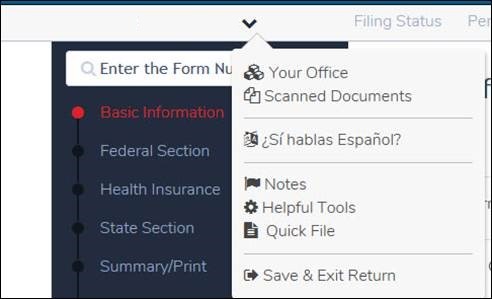
To access Quick File, click on the drop down menu next to the taxpayer’s name as shown below:

Select “Quick File” and type in all source documents included in the tax return per Form 13614-C (in the order you want to enter the information).  Below is an example of using Quick File after entering the Basic return information

Click “Continue” at the bottom of the screen once all source documents are added.  This will allow you to enter only the documents provided by the taxpayer without moving through the other menus.

NOTE: After adding the Basic tax information, you may also go to “Summary/Print” and click on the line on Form 1040 to enter data without going through the menus for direct entry to Form 1040.

Blog Posted 03/02/2017    11:03 AM EST


Returns Awaiting Acknowledgement Report

05 Feb 17
Kim Manuel
,
No Comments

List of returns with an outstanding federal and/or state acknowledgement.

(1) Select Reports

(2) Select Management Reports.  This will pop up in a separate window.  Allow this in your pop-up blocker

(3) Select Returns Awaiting Acknowledgements

(4) Defaults to 2016.  Change default date range if applicable

(5) Select EFIN Selection and select the EFIN (even if only 1)

(6) Select Run Report or Run Report for Export

Note:  Run Report for export will display a few lines of the report on the screen

(7) Review the report

Sort the columns

At this point, you can export the report to a CSV file or select Web Reports from the upper left corner to run additional reports.

Blog Posted 02/05/2017   9:12 PM Eastern

Information on what to do if Calculations are not rendering:

28 Jan 17
Kim Manuel
No Comments

This was posted related to the interruption of service with real-time calculations we had on Saturday, January 28, 2017

Background:  On Saturday, January 28, 2017 at 11:53 AM EST, TaxSlayer experienced an interruption in service. This issue prevented the software from performing real-time tax calculations. However; sites still had the ability to input the taxpayers return information in the software without turning taxpayers away.  As a result of this issue:

  • The application was not displaying the refund/balance due as users were entering data in the return
  • Users were unable to print

This issue was addressed and resolved by the TaxSlayer development team and the tax calculations were again performing properly at approximately 1:00 PM EST .


How do I know if the calculations are not available and not rendering data?

  • When you open a return or navigate to Summary/Print and the return continuously displays calculating

What does calculations not available and not rendering data mean?

  • The application is not displaying the refund/balance due as you are entering data in the return in real time.

What can I do when the calculations are not available and not rendering data?

  • If you are on the Summary/Print page when opening the return, select the menu icon in the upper left corner and select Basic Information
  • This will allow you to continue entering data
  • You can continue creating new returns.  You can enter the data that the taxpayer has brought you.  You will not be seeing the refund/balance due change across the top bar while you are doing this.

Will the return calculate based on the information entered when the calculations are available?

  • Yes.  Opening the return will kick off the calculations and the return will render updated calculations.

Can I print the return when the calculations are not Available?

  • No because the return kicks off a calculation each time  you print it.
  • Once the calculations are available, you will be able to print the return

What items are not available to me when the calculations are not available?

  • Completing the e-file section of the return
  • Printing the return

The application is designed to allow you to continue preparing returns and working in your site doing administrative type functions.

Blog Posted 01/28/2017    3:18 PM EST