Category: e-File

Pro Online 2016 & 2015: Returns in transmitted status since 2/2 (Updated Info)

07 Feb 18
Kim Manuel
, ,
No Comments

Updated Info:

This does include prior year returns transmitted prior to 2/2/2018.  For 2016 returns, to determine if your “transmitted”r return falls into this situation; select the Client Rejects button on the Welcome page, switch to 2016 and select Validation errors from the drop down.  If the 2016 return is not on the validation list, it is impacted by this issue

For 2015 returns, to determine if your “transmitted” return falls into this situation, navigate to Reports >> Validation Errors and run the report.  If the 2015 return is not on the validation list, it is impacted by this issue

~~~~  Original Blog Post ~~~~

Scenario:  You have transmitted a prior year e-file and the return is still in transmitted status and you are not showing any validation errors.  These appear to be returns submitted after 2/1/2018. Issue ID 1001

Current Status:  We are actively researching this and will update this post when we have a resolution or additional information.

Blog posted 02/07/2018
Pro Online/Desktop – Delay in Issuing New Mexico Acknowledgements

06 Feb 18
Craig Smith
, ,
No Comments

New Mexico has reached out to vendors to acknowledge they will be a little delayed in processing acknowledgements of individual NM returns. New Mexico indicated they are throttling the processing of incoming individual returns to ensure they are able to respond more easily to any technical issues that may arise. This means that it may take longer than usual to issue acknowledgements.

Q: What should sites do that have not received acks for transmitted NM returns?

A: Nothing. If your site has transmitted NM returns and they have not been accepted or rejected, continue to wait as NM is currently working through their backlog to issue acknowledgements. They should start coming in over the next several days.

Pro Online: Outstanding Fed/State Acknowledgements

05 Feb 18
Craig Smith

No Comments

Just as a heads up to sites that were preparing returns over the weekend (2/3 – 2/4), there were roughly 1,000 acknowledgements (Federal and state) that were delayed. They should start appearing at your sites throughout the morning.

IRS Reject: R0000-504-2

01 Feb 18
Kim Manuel
,
No Comments

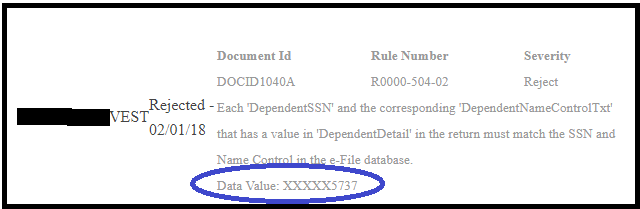
Scenario:  My return was rejected because the Dependent SSN does not match the Name Control on file with the IRS.

How do I know which dependent?  The IRS ack and the client status will display the last 4 digits of the SSN

Tip:  Verify that the information entered matches the information on the Social Security card to ensure there are no typographical errors,


Alabama Reject Code: AL 40-915 series

31 Jan 18
Kim Manuel
, ,
No Comments

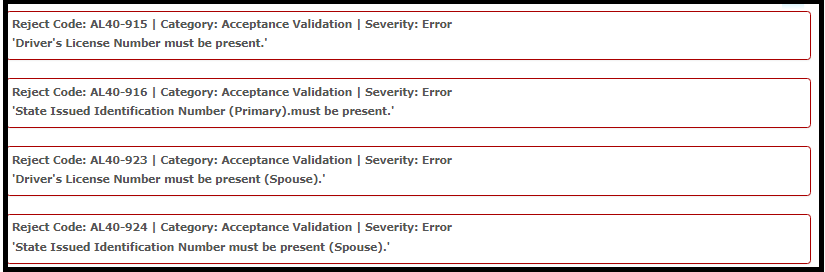
Scenario:  You selected No Drivers License or State ID from the drop down list and receive the following reject(s)

Reason:  Alabama requires a state ID for both the taxpayer and spouse.  They do not allow for no license or state ID

Solution:  If no information is available, the state will have to be filed paper


Pro Online: Send State Only (Updated 11:00 am EST)

30 Jan 18
Kim Manuel
, ,
No Comments

Updated Information

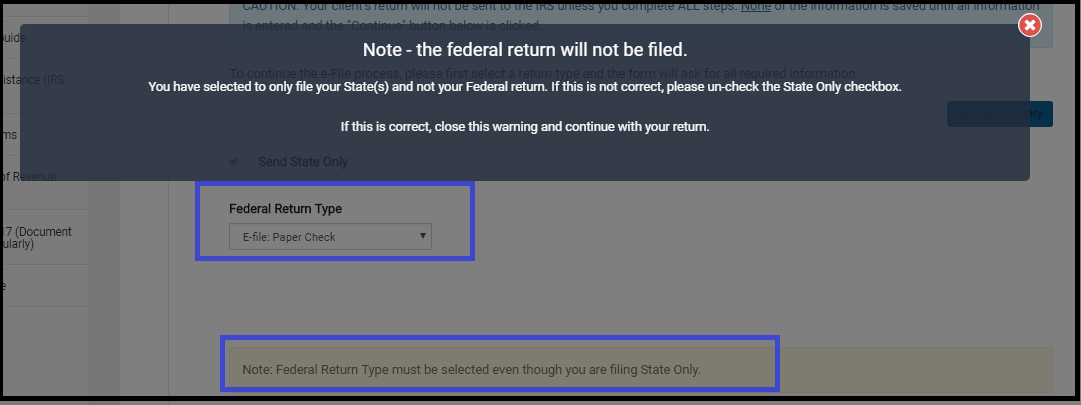
Send State Only has been activated.  Remember, you must select an e-file option for the Federal Return Type as illustrated below.  You will also have to click the note reminding you that the Federal Return will not be filed even though it is marked with an electronic Return Type.

~~~~~Original Blog Post~~~~~

We will be enabling the ability to “Send State Only” returns on Wednesday, January 31st.

What should the Federal Return type be when selecting “Send State Only”

The federal return type must be elected with an E-file option.  The federal return WILL NOT be resent, as long as you have the “Send State Only” box marked.

Where to I transmit a “State Only” return from if the IRS Return is accepted?

If the Federal Return has already been accepted, you will use the Send button located on the Submission screen in the e-file section.

My Federal is accepted and my state is rejected, what should I do?

Wait until we enable the “Send State Only” feature.  DO NOT resend the federal return in an effort to go ahead and resend the state return, this will generate an IRS reject for duplicate return.

Blog posted 01/30/2018

Pro Online: Taking Advantage of the Rejected Clients Feature

30 Jan 18
Kim Manuel
,
No Comments

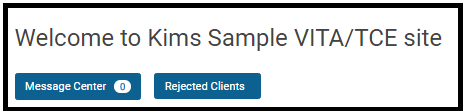
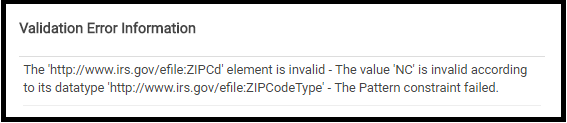
Validation errors have been added to the Rejected Clients feature located on your Welcome page.

Rejected Federal Clients

  • Select the Rejected Clients button

The year defaults to 2017, but can be changed to 2016.  The selection criteria defaults to Rejects.  Selecting rejects renders a list of your rejected returns, along with the reject code.

  • View the list of rejected returns.  The example below is for the default 2017 Rejected Clients

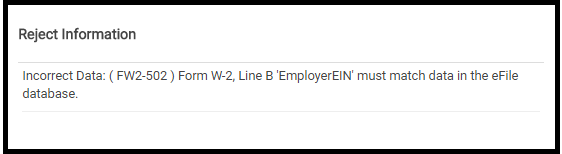
  • Selecting the reject code gives you the reject definition.  It does NOT give  you the specific entry that is rejected at this point.  For example, it would not give you the specific dependents SSN.  However, printing your IRS Acknowledgements to HTML will give you the rejected Data Value.  Detail information is also listed on the Client Status screen.

  • Click Select to open and correct the rejected return.  Remember, you can retransmit a rejected return from the Submission page if you have the appropriate rights, otherwise, you must use the Add Return feature to add them to the Transmission list.

Validation errors

  • Select the Rejected Clients button

The year defaults to 2017, but can be changed to 2016 (2015 coming soon).  The selection criteria defaults to Rejects.  Change the drop down to Validation Errors.  This prevents you from having to contact support to determine why prior year returns failed validation.

  • View the list of returns with validation errors .  The example below is for the default 2017 Validation errors

  • Selecting the error code link gives you the validation reason and when possible a helpful hint on how to resolve the error.

  • Click Select to open and correct the validation error.  There are times when the return does not need to be opened to fix the error, just retransmitted.  We typically post these instructions on the Blog.

Blog posted 01/30/2018


Pro Online 2017: Marking the Return Complete

29 Jan 18
Kim Manuel
,
No Comments

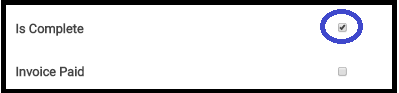
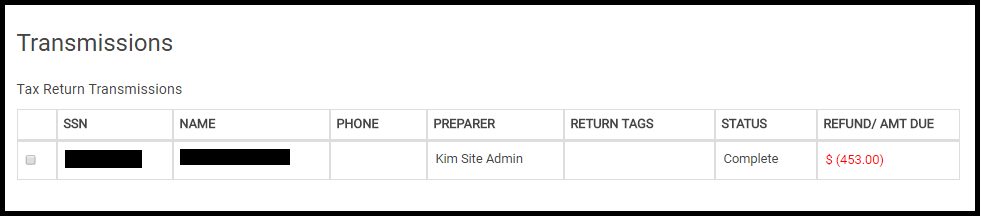
Marking a return Complete on the Submission page in the E-file section changes the return status to Complete and the return will be displayed in the transmission screen.

Blog posted 01/29/2018