Category: Software News

Sneak Peek 2021: Changes to the E-file Section (Part 1)

19 Oct 21
Kim Manuel
, ,
No Comments

We are excited to begin introducing changes to the e-file section of the application for the upcoming filing season.  These changes are designed to increase efficiency and to produce a more quality return.  As we begin seeing these changes internally, we will introduce them to you to make you aware of any changes that could impact the day to day operations of your site.

Horizontal instead of Vertical Layout

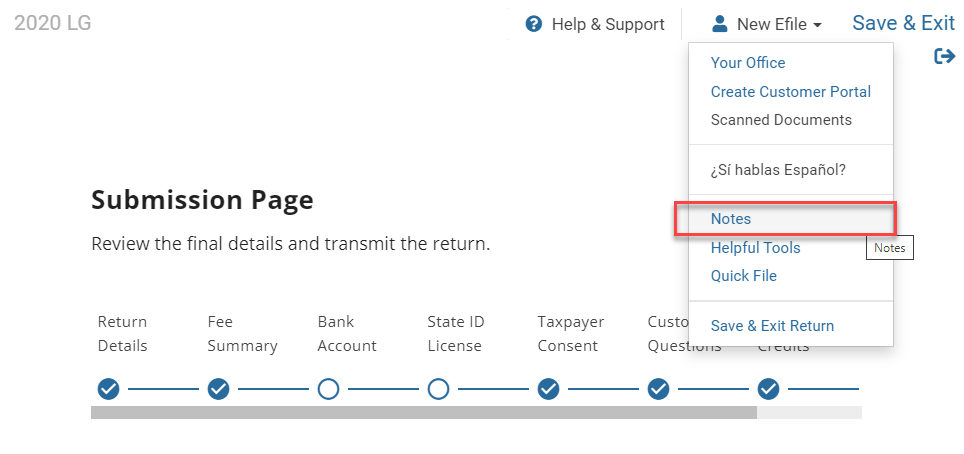
You will access the different sections in a horizontal tabular manner rather than one long vertical page separated by accordion style folders.

Purpose:  The application saves the data each time you hit continue to move to the next or different section.  All required entries per section must be completed before saving and exiting the section.  This is consistent with how the preparer navigates the entry pages in the return.


Advantage:  The preparer or quality reviewer can quickly see the pages that have been completed by the indication of the checkmark associated with each heading.

  • Return Type = This is where you decide how you are filing the federal and state return
  • View Fees = This gives the sites that are tracking fees to capture “savings to the taxpayer” for reporting purposes a more in-depth look at the fees that would be associated with the return if the taxpayer went to a paid preparer.
  • Bank Account = This will display the information needed for Direct Deposit or Direct Debit.  This is where the preparer will access the information for Form 8888 if they have made this selection in Office Setup.  We strongly recommend making this selection.  If the taxpayer does not want to split their refund, simply enter the information in the first bank account and Form 8888 will not be included with the return.
  • State ID License = This will be optional or required based on the state(s) in the return
  • Taxpayer Consent = Access the consents that are assigned to the site or created by the site.  This will be where you access the Global Carryforward Consent
  • Custom QuestionsAccess the questions that are assigned to the site or created by the site.
  • Custom Credits = Access the custom credits that are assigned to the site or created by the site.
  • E-file Summary = This is equivalent to the submission page where you will have options to print the return, mark the return for review, mark the return complete, select return tags, etc.

Each section will have the ability to select Back, Continue or Save & Exit


Customer Portal Training Guide & Video Now Available

29 Sep 21
Craig Smith
No Comments

The mini-guide and video for the Customer Portal is now Available on the blog. These are not available in the Practice Lab at this time.

Click Here for the video.

Click Here for the training guide.

Suggestion Box: Send us your Summertime Suggestions

11 Aug 21
Kim Manuel
No Comments

Click here to submit a suggestion

We are working through the suggestions you submitted to us during the season. We encourage you to continue to send us suggestions throughout the summer and fall.

Reminder: The suggestion box should not be used for calculation errors or software issues.  You should reach out to VITA/TCE support.

Site Cannot be reached [RESOLVED]

19 Jul 21
Kim Manuel
No Comments

The site is currently experiencing connection issues:  Our IT team is currently working to resolve the issue.

This site can’t be reached

vita.taxslayerpro.com unexpectedly closed the connection.

Try:

ERR_CONNECTION_CLOSED

Unexpected errors (Update 8:44 am)

06 Jul 21
Kim Manuel
No Comments

Update 8:44 am:  If you receive the error that the calculations are not available when opening a return in TaxSlayer 2020, close the return and open it again.  The calculations are rendering on the 2nd open of the return.  This is not impacting the ability to Start a New 2020 return.

Our engineers are continuing to work on a resolution

__________________________________

We are experiencing intermittent “unexpected errors” when opening existing returns and transmitting returns.  We have opened a ticket with our engineers to resolve.  This is affecting TaxSlayer 2020, 2019 and 2018.

VITA/TCE Support: Closed Memorial Day

28 May 21
Craig Smith
No Comments

VITA/TCE Support will be closed on Monday, May 31st for Memorial Day. Normal off-season hours will resume on Tuesday, June 1st at 8:00am ET.

TaxSlayer Pro Online: 2018 Program Year

26 May 21
Craig Smith
No Comments

Update: 10:36am ET

Speeds have significantly improved, however, errors are still occurring very intermittently mostly when accessing a return from Client List.


We have received sporadic reports of the 2018 program year running slowly and generating errors in some instances. We have opened a High Priority ticket (Issue 6183) for development to see what may be going on.

End of Season: Did all of my state returns get filed?

18 May 21
Kim Manuel
No Comments

How can I determine which state returns were electronically filed and which state returns were marked as Paper?

We recommend running the Pro Web Returns – Detailed Return Report located under Management Reports


  • Defaults to Tax Year 2020
  • Enter a Start Date and End Date
  • Select the checkmark next to the EFIN

You can either select Run Report or Run report for Export.  Either way, you may want to export the data so you can sort it

What information does this report give me?

  • Group Name (Will be blank)
  • EFIN
  • Last 4
  • First Name
  • Last Name
  • Status (status of the federal return)
  • Federal Return Type (e-file, paper, direct deposit, direct debit, etc)
  • Federal Refund (negative if balance due)
  • State (state abbreviations…If the return had more than 1 state, the return will have multiple rows)
  • State return type
    • You are looking for Paper or PR with ??
  • State Refund
  • Stated date (date return was started)

Note:  New for TY2020, this report also had 1040X columns

Can I filter the columns?

Yes, each column allows you to sort in Ascending or Descending order.  You can also filter by selecting a certain criteria such as Paper or PR

The filter below on the state return type column will display a list of all returns where the state was marked as paper


You can now export this filtered list so it is easier for you to work with