Category: What’s New

Pro Online 2017: Tuition and Fees; PMI Extenders are live

22 Feb 18
Kim Manuel

No Comments

The Tuition and Fees option is located on the 8863 to allow you to determine which is better for your taxpayer.

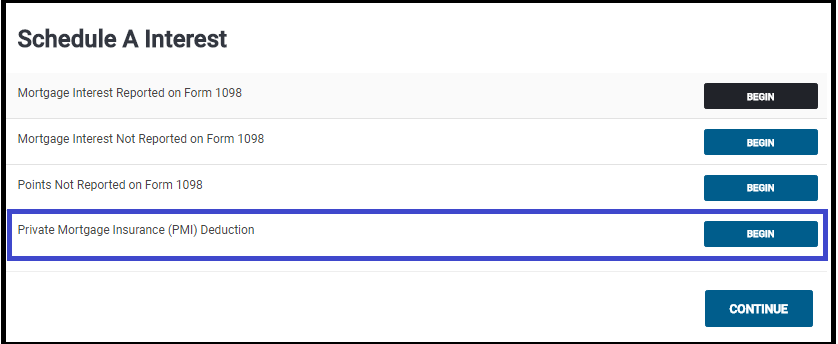
PMI is located in the Mortage and Interest section of Itemized Deductions

Important Note: 

Due to the recent passing of the Bipartisan Budget Act of 2018, certain expired federal provisions have been reinstated such as the Tuition and Fees deduction and the Mortgage Insurance premiums deduction. Each individual state will determine if and when they will conform with those federal changes.  If you file a state return prior to the state making their decision to conform or not you may be required to file an amended return.”

TaxSlayer recommendation:  Once we deliver these two items, we recommend that you create a return tag if the return has one of these two items in it and a state return.  As of today, we do not know if the state(s) are going to adopt the extenders.  Once your state makes a decision, you can run a “Tags report” and review the state returns to see if any adjustments need to be made.

Link to Post with State Extender Information

Blog posted 02/22/2018

Pro Online 2017: Taking the 933 Exclusion on the 1040

21 Feb 18
Kim Manuel
,
No Comments

Before taking the Section 933 Exclusion for exempt PR income, be sure you have first reported the earned Puerto Rican sourced income so that the exclusion is reducing the applicable amount. To first report the Puerto Rican sourced income on Form 1040 from the Income menu go to “Other Income” > “Other Income Not Reported Elsewhere”. Enter the description as “Puerto Rican Earned Income” and then the dollar value. Once these steps have been taken, use the steps outlined below to claim the Section 933 Exclusion.

(1) Navigate to the Income Section

(2) Click begin on the Other Income Line

(3) Click Begin on the Compensation Line located on the Less Common Income menu

(4) Select Begin on the Section 933 Excluded Income from Puerto Rico

(5) Answer the Bona Fide Resident question

(6) Answering Yes displays an entry that allows you to enter the amount to exclude.   Enter the amount and click Continue

(7) If you need to itemize deductions, navigate to Itemized Deductions.  The screen will display the percentage amount that you can enter for each item based on the income exclusion

(8) The excluded amount will be subtracted on Line 21

blog posted 02/21/2018


Pro Online: New Dialog box when transmitting from Submission Page

21 Feb 18
Kim Manuel
,
No Comments

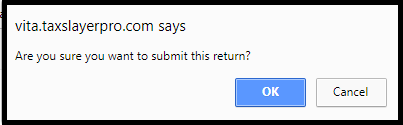
We added a verification dialog box when “Save and Transmit” is selected on the submission page in e-file

Click OK to submit the return

Click Cancel to return to the page and then select Save and Exit return

Reason:  The boxes are the same color and similar size and returns were occasionally getting sent prematurely

Pro Online: New “State Only” Status

05 Feb 18
Kim Manuel
,
No Comments

The client list has a new status that you can filter returns on:   “State Only”

Can I filter my client list on the State Only status?

Yes

When will the State Only status display?

When you have electronically filed a state WITHOUT filing the federal return

Will the State Only status change when the state is accepted or rejected?

Updated 2/21:  Yes, the status will change to the final status of the state only return.  Accepted or Rejected

Blog posted 02/05/2018


Pro Online: Change to Returns in Transmitted Status

02 Feb 18
Kim Manuel
, , ,
No Comments

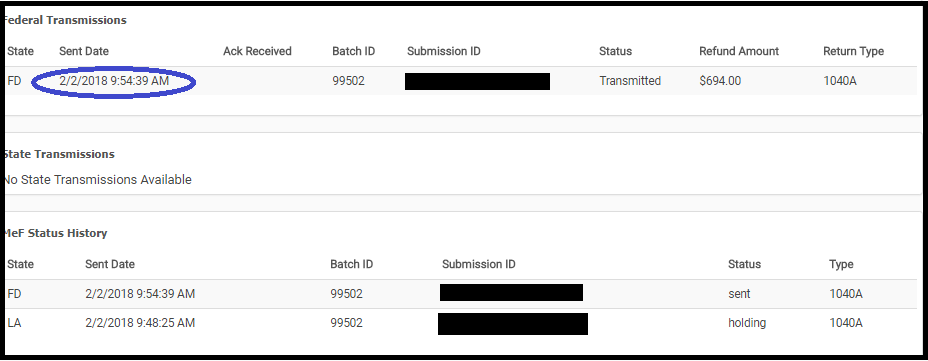
We made a change to what the preparer can do with a return while it is in the status of “Transmitted”.  We removed the ability to open a return and make changes to it while it is in the status of “Transmitted”


The average turn around time for federal acknowledgements is 7 to 15 minutes.

How do I correct federal returns with validation errors because they stay in the transmitted status

Navigate to Rejected Clients on the Welcome Screen and select Validation errors.  A list of returns with outstanding federal validation errors will be listed.  Click Select to open the return

What if the return does not show up under validation errors?

We have not received an acknowledgement from the IRS.  You can still view the Client Status to see where the return is in the transmission process

What if the return is a true State Only return and there was no federal filing requirement?

We will be making a modification to the status to indicate that it is a “State Only” return (where there was no federal return filed) to allow you to open it to make corrections to state rejects.

What about my 2015 returns that have a true validation error?

We will be adding an option to allow you entry into these returns from Rejected Clients.


Pro Online: Taking Advantage of the Rejected Clients Feature

30 Jan 18
Kim Manuel
,
No Comments

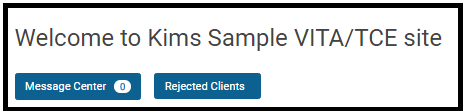
Validation errors have been added to the Rejected Clients feature located on your Welcome page.

Rejected Federal Clients

  • Select the Rejected Clients button

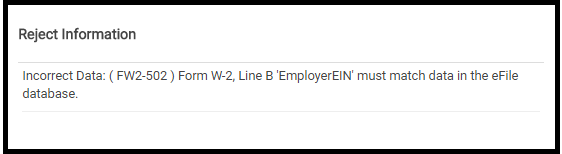
The year defaults to 2017, but can be changed to 2016.  The selection criteria defaults to Rejects.  Selecting rejects renders a list of your rejected returns, along with the reject code.

  • View the list of rejected returns.  The example below is for the default 2017 Rejected Clients

  • Selecting the reject code gives you the reject definition.  It does NOT give  you the specific entry that is rejected at this point.  For example, it would not give you the specific dependents SSN.  However, printing your IRS Acknowledgements to HTML will give you the rejected Data Value.  Detail information is also listed on the Client Status screen.

  • Click Select to open and correct the rejected return.  Remember, you can retransmit a rejected return from the Submission page if you have the appropriate rights, otherwise, you must use the Add Return feature to add them to the Transmission list.

Validation errors

  • Select the Rejected Clients button

The year defaults to 2017, but can be changed to 2016 (2015 coming soon).  The selection criteria defaults to Rejects.  Change the drop down to Validation Errors.  This prevents you from having to contact support to determine why prior year returns failed validation.

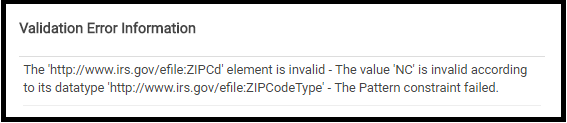
  • View the list of returns with validation errors .  The example below is for the default 2017 Validation errors

  • Selecting the error code link gives you the validation reason and when possible a helpful hint on how to resolve the error.

  • Click Select to open and correct the validation error.  There are times when the return does not need to be opened to fix the error, just retransmitted.  We typically post these instructions on the Blog.

Blog posted 01/30/2018


Pro Online 2017: Disaster Area Implementation

30 Jan 18
Kim Manuel
, ,
No Comments

The IRS issued final forms and instructions to software vendors last week.  We are in the final implementation of delivering phase I to production.  This phase will include the ability to designate the disaster area in the Personal Information Section.


You will then be able to enter the inputs from their TY2016 return into the application.  Once the Disaster Designation has been made in Basic Information, a menu option will appear at the bottom of the main income menu titled, “Prior Year Income for Hurricane Disaster Victims”. Preparers will have the option to let the program determine the most advantageous calculation for the return or choose to use the prior year figure.

This phase I delivery will also include the changes to charitable contributions as it applies to Disaster Areas. Within the Itemized Deduction menu > Gifts to Charity, users will first complete the “Cash Gifts to Charity”. After completing this menu, a new menu will appear labeled, “Cash Donations to Disaster Relief Charities”. This is where the preparer will designate the amount of cash donations made towards disaster relief efforts.

Phase II will implement changes that impact Form 8606

Blog posted  01/30/2018


1040NR Returns Claiming Treaty Exempt Wages are Eligible for E-file

29 Jan 18
Craig Smith
,
No Comments

F1040-NR users claiming a tax treaty exemption for W-2 income this year are now eligible to e-file those returns. If eligible to claim this exemption when completing a 1040NR return, got to Basic Information > Schedule OI > General Information. To claim the treaty exemption, you first must check the box “Check if you were subject to tax in a foreign country on U.S. exempt income” then enter the applicable amount of wages from the W-2. The below red text will be removed now that the e-file block has been removed for 1040-NR returns claiming the treaty exemption for wages. Don’t worry, you CAN e-file these returns.

After completing the applicable information within the Schedule OI > General Information, select Continue to complete the rest of the Schedule OI’s menus, such as “Income Exempt from Tax”. This is where you will select the country and Tax Treaty Article to support the exempt wages.