Category: What’s New

Pro Online: Product Update Alert – Thursday, January 25th at 5:00am Eastern (SCREENSHOTS PROVIDED)

24 Jan 18
Craig Smith
No Comments

The site will be placed in maintenance on Thursday, January 25th at 5:00am Eastern to release a series of updates.

  • Text updates to assist prepares completing the affordability worksheet. Screenshots will be provided after the deployment

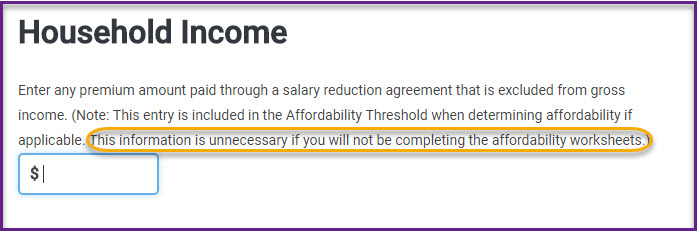
On the Household Income screen additional text was added to further explain this entry is only needed if preparers will be completing the Affordability Worksheet later.

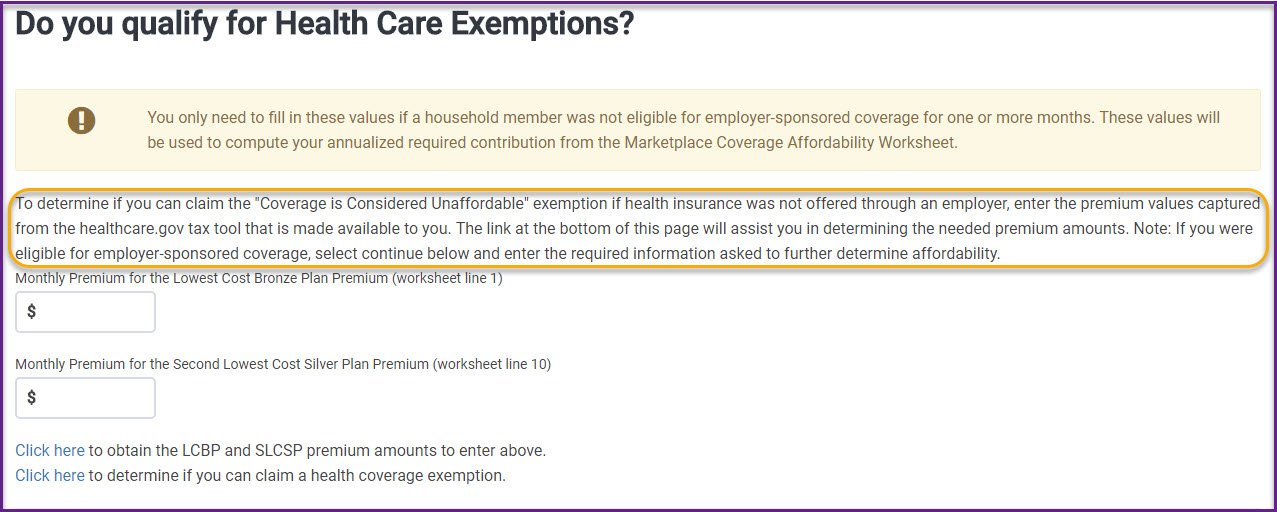
On the LCBP and SLCSP screen, the outlined text received an overall update to explain to preparers how to retrieve the LCBP and SLCSP premium values

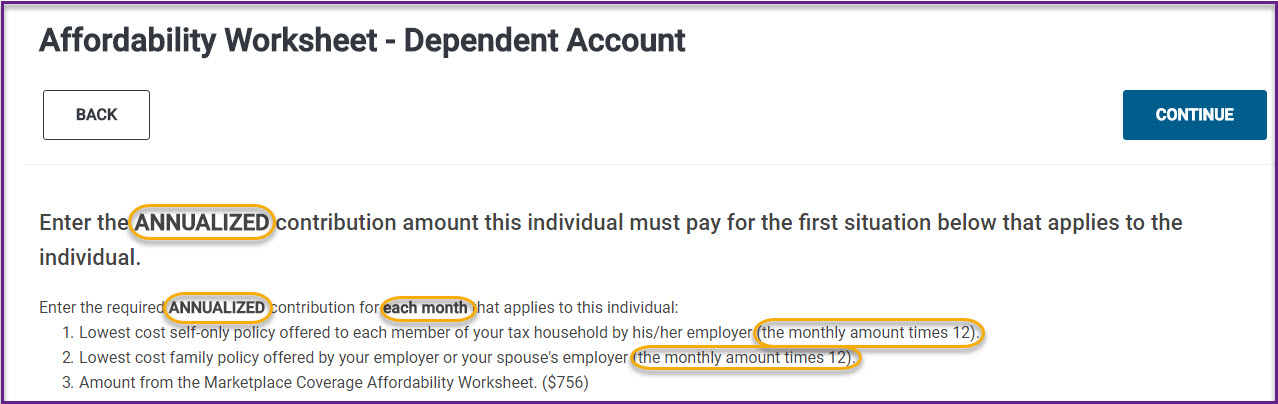
Various updates on the Affordability Worksheet when entering annualized contribution amounts. The word “ANNUALIZED” is now bold and in all CAPS. We also added text next to Situation 1 and 2 to help explain the monthly figure needs to be multiplied by 12 and then entered into each applicable month.

Pro Online 2017: Adding Global Consent to your Created Print Sets

18 Jan 18
Kim Manuel

No Comments

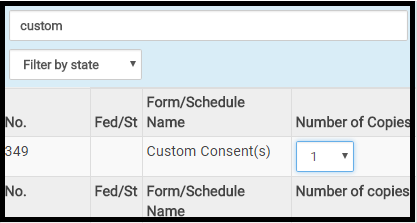
When you are editing an existing print set or creating a new print set you will need to search for Custom Consents and add a 1 for the count.  Below is an example:

blog Posted 01/18/2019

Pro Online: Consent to Disclose Tax Return Information to VITA/TCE Tax Preparation Sites

16 Jan 18
Kim Manuel
,
No Comments

Why is this consent showing up in all of my returns?

This Consent has been assigned to all locations.  The consent must have a PIN and date for Taxpayer/Spouse in order to validate the E-file  page.  This is step 1 of a 2 year process to allow taxpayer information to be available if the taxpayer/spouse goes to an active VITA/TCE site the next year.

Can this be removed from my site?

No. This is part of the Global Carry forward program implemented for VITA/TCE.

Will I still have same site to same site carry forward data available if the consent is denied?

Yes.  This does not impact normal same site to same site carryforward

Explanation of process with a positive/accept consent (Scenario A)

  • Return is prepared at VITA/TCE Site A for Tax Year 2017
  • Consent is granted
  • Taxpayer goes to VITA/TCE Site B in Tax Year 2018
  • The taxpayer’s information is made available to pull forward at Site B because they accepted the consent

Explanation of process with a positive/accept consent (Scenario B)

  • Return is prepared at VITA/TCE Site A for Tax Year 2017
  • Consent is granted
  • Taxpayer returns to VITA/TCE Site A in Tax Year 2018
  • The taxpayer’s information is made available to pull forward at Site A because it is same site to same site

Explanation of process with a negative/deny consent (scenario A)

  • Return is prepared at VITA/TCE Site A for Tax Year 2017
  • Consent is denied
  • Taxpayer goes to VITA/TCE Site B in Tax Year 2018
  • The taxpayer’s information is NOT made available to pull forward at Site B because they denied the consent

Explanation of process with a negative/deny consent (scenario B)

  • Return is prepared at VITA/TCE Site A for Tax Year 2017
  • Consent is denied
  • Taxpayer goes back to VITA/TCE Site A in Tax Year 2018
  • The taxpayer’s information is  made available to pull forward at Site A because it is same site to same site

Known issues:

  • The Consent is not printing the appropriate wording if the taxpayer denies consent.  We are working towards a resolution that will be applied in a future update.

LIVE: Health Insurance – Affordability Worksheet – Phase II

11 Jan 18
Craig Smith
, , ,
No Comments

We are excited to announce that the addition of the Affordability Worksheet (Phase II of Health Insurance redesign) will be released soon (tomorrow that is – 1/12/18)! Click here  to then download a PDF providing additional information regarding the implementation of the Affordability Worksheet. The PDF will be found on the left-hand navigation bar after clicking the link.

Remember, the intent on the redesign after adding the Affordability Worksheet is specific to the order in which claiming exemptions is presented to the user. Previously, the determination to claim the affordability exemption was presented too early in the Health Insurance menu way before users had the opportunity to claim other coverage exemptions that applied (causing increased legwork on the preparer). The general order for claiming exemptions for not having Health Insurance is as follows:

  1. Program first determines if “Household or Gross Income below Filing Threshold” exemption applies
    • If the return qualifies, exemption is applied to the return and the Health Insurance menu is complete
    • If the return does not qualify, move to Step 2.
  2. Preparer is now asked if any household members received a Marketplace Issued Exemption Certificate or qualifies to claim another coverage exemptions besides affordability
    • If the household members came to your site with a Marketplace Issued Exemption Certificate or qualified for another coverage exemption, this information can be entered into the program and applied accordingly to each applicable household member
  3. If a Marketplace Issued Exemption Certificate was not received (or will not be applied for) and another coverage exemption does not qualify, the preparer can then make the determination to see if the “Coverage is Considered Unaffordable” applies and are then taken through those steps.

Group Level Logins: MSA and Relational Assigned Tags

10 Jan 18
Kim Manuel
, ,
No Comments

Assigned Tags will not show up under Configuration>>Tags at the site they are assigned to.  This is a change from last year.  Tags now behave in the same manner as assigned Security Templates.

The assigned tags will be displayed in the following locations:

(1) Client List when you select the Tag icon

(2) The submission page in the e-file section.


These two sections will show the tags assigned to the site and the tags created at the site.

Note:  The only tags visible under Configuration>>Tags are the ones created at the site level.

Pro Online: Return Prep Maintenance Alert – 1/9/18 (COMPLETE)

09 Jan 18
Craig Smith
,
No Comments

1/9/18 – 8:40am ET

Return preparation is now out of maintenance as new UI/UX updates were released (User Interface, User Experience).

  • The pill shaped buttons are now rectangle in shape and a little larger
  • The navigational buttons (Edit, Begin, Enter Myself, etc.) are darker in color with white wording
  • When on Summary/Print the left navigation bar is collapsed (previous behavior) but instead of clicking the “Expand” arrows, simply hovering your mouse over the left navigation bar will automatically expand the menu

1/9/18 – 8:18am ET

The site (only return preparation) will be placed into maintenance mode for about 30 minutes beginning at 8:20am ET. This maintenance window will be complete prior to 9:00am ET. This will only impact return preparation.

Practice Lab/Pro Online: Introducing the Forms Completed Feature (Phase I)

09 Jan 18
Kim Manuel
, , ,
No Comments

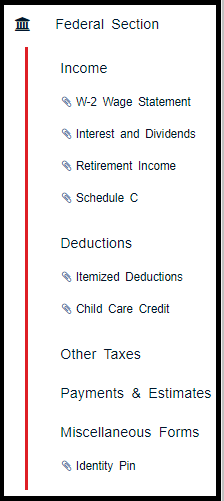
The left navigation bar now reflects the entry forms that have been completed during return preparation.

This will allow the quality reviewer the ability to quickly navigate through the entry forms that were completed during tax preparation by clicking down the displayed items under each Federal Section

See example below:

Note:  We are experiencing the tagged completed entries disappearing if you add an additional form.  We will be working to resolve this over the next couple of weeks.  Our goal for Phase I delivery is to allow you to get a feel for the new feature and allow you to work it into your Quality Review Process.

This seems to be happening in Chrome and not in Internet Explorer

Pro Online: Health Insurance Update – Phase I Live

08 Jan 18
Craig Smith
, , ,
No Comments

Phase I of the new Health Insurance redesign has been released. Phase I incorporates the new flow users will see when preparing 2017 returns starting next week (this is also live in the Practice Lab). Phase II will incorporate the addition of the Affordability Worksheet which is expected to be in production prior to turning on “Start New 2017 Tax Return”. The intent behind the redesign of the flow is to first allow users to claim qualifying exemptions before presenting the option to determine affordability. Assuming the household does not qualify to claim the “Household or Gross Income below…..” exemption, did not receive a Marketplace issued exemption certificate, or does not qualify to claim a coverage exemption, then and only then will the user be presented the option to determine affordability.

The first visible change you will see will be on the “Household Income” screen. This used to be the “Dependents’ MAGI (if filing requirement)” screen. An entry field for “Premium amount paid through salary reduction agreement” has been added. This will be the first step in determining affordability as this entry will be in included in the Affordability Threshold (Line A of Affordability Worksheet).

The second change will be when a user clicks “Continue” on the “Household Income” menu. Clicking continue here is where the automatic determination of “Household or Gross Income below Filing Threshold” exemption will occur. If the return qualifies for this exemption, the exemption will be applied to the return and the Health Insurance menu will be complete. If the return does not qualify for the above mentioned exemption, the user now has the option to claim either a Marketplace issued certificate exemption or another coverage exemption for each household member. They will answer “YES” when asked “Did you qualify for an exemption due to circumstances or receive an exemption certificate from the marketplace?”.

If a user answers “NO” to the above question, “Did you qualify for an exemption…..”, the user will be then asked if they wish to complete the process to determine if the affordability exemption may apply (Phase II coming soon). More details will be released once Phase II has been rolled into production.