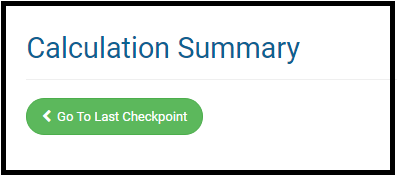
We have added a Last Checkpoint button on the Summary/Print page.

This feature will take the user back to the last form that was accessed before coming to the Summary/Print page.
Blog posted 10/05/2017
We have added a Last Checkpoint button on the Summary/Print page.

This feature will take the user back to the last form that was accessed before coming to the Summary/Print page.
Blog posted 10/05/2017
The following two items will no longer be applicable and will be removed from the application prior to the roll out of TaxSlayer Pro Online 2017:
Blog Posted 09/12/2017
This fresh new looks allows you to access more information without having to scroll.

The new field (outlined below) is not applicable to VITA/TCE sites. It is NOT a number you need to obtain from anywhere and enter. This is a number assigned to Paid Preparers when they are designated as the Power of Attorney or Third Party Designee

Within “Management Reports”, the “Site Production State Summary Report” now has a column specific to the Preparer Name shown below. This allows sites to filter state returns prepared by volunteer. This was a request received as some sites are required to produce this information for further funding.

We will be changing the look of the Login page, as well as some wording prior to the tax season. We will be using the verbiage “Access Code” instead of “Security Code”


Three (3) unsuccessful login attempts will trigger the Multi-Factor Authentication process. Please refer to Question 2 from the blog post titled MFA: Timing Questions (Series 1, Part 3) posted on Monday, August 21st.
Blog Posted 08/23/2017
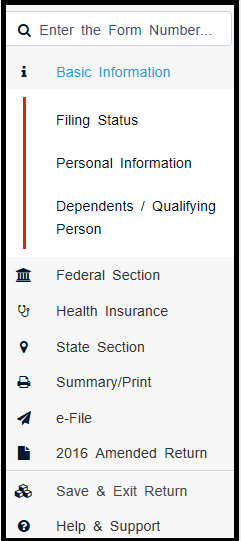
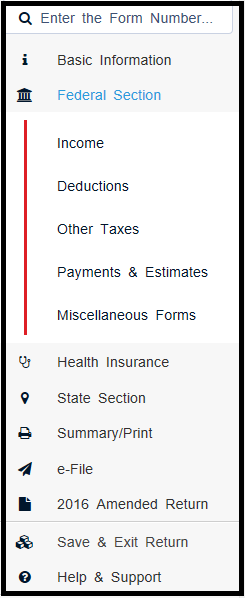
The following views will be delivered prior to tax season. The expanded links take you directly to the section for easier navigation within the return.


blog posted 08/19/2017
Site Administrators will have the ability to change a return with the status of Complete back to In Progress prior to tax season. This feature can be assigned to other uses via Security Templates to more easily manage returns.
A new item has been added to Security Templates. It will be defaulted to true, which will prevent any user from doing this until the Site Administrator allows access
Below is the item as default which = the user cannot change the return status

Below is the item enabled by the site administrator which = the user can change the return status from “Complete” to “In Progress”

Note: This is also an easier method if you need to delete a return marked as “Complete”. You will now have the ability to go from “Complete” to “In Progress” and then ” Deactivate” (all based on the Security Template applied to the user).
Below is an example of a return from the client list that has the status of “Complete”:

The user with the appropriate Security Template, will open the return and navigate to the Submission page in the e-file section of the return. Below is an example of what the screen will look like:
![]()
Click Yes to change the status back to “In Progress”. Below is an example of what the screen will look like after clicking Yes:
![]()
Save and Exit the return. Below is an example from the client list after the status has been changed:

Note: The return can be marked “Complete” again after this process has been used.
Blog Posted 08/14/2017