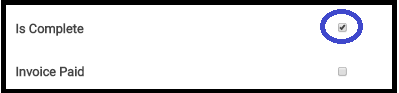
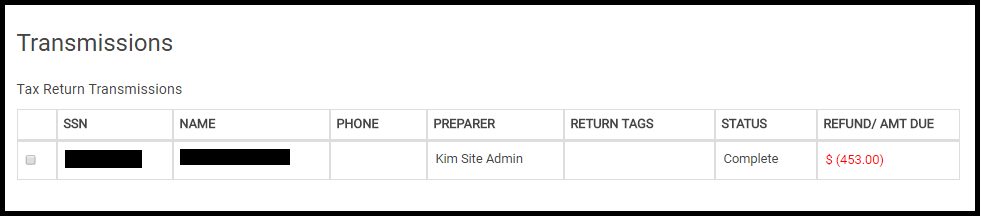
Marking a return Complete on the Submission page in the E-file section changes the return status to Complete and the return will be displayed in the transmission screen.

Blog posted 01/29/2018
Marking a return Complete on the Submission page in the E-file section changes the return status to Complete and the return will be displayed in the transmission screen.
Blog posted 01/29/2018
Scenario: You have transmitted returns and your status is remaining “Transmitted”
Navigate to Reports and run the “Validation Erros” Report to see if you are receiving the following error:

Note: It will be the State abbreviations of your specific site.
Updated info: Next, navigate to the Configuration>>ERO Setup and verify that the zip code field for both have the zip code and not your state abbreviations. We automatically uploaded this information to correct the zip code in ERO setup at approximately 1:00 pm EST.

The zip code we entered was based on the order we received from the IRS. Make the appropriate correction to the zip code field.
Note: You DO NOT have to open each return.

4. Select the returns that received the validation error (most likely all that are listed with the status of Transmitted)
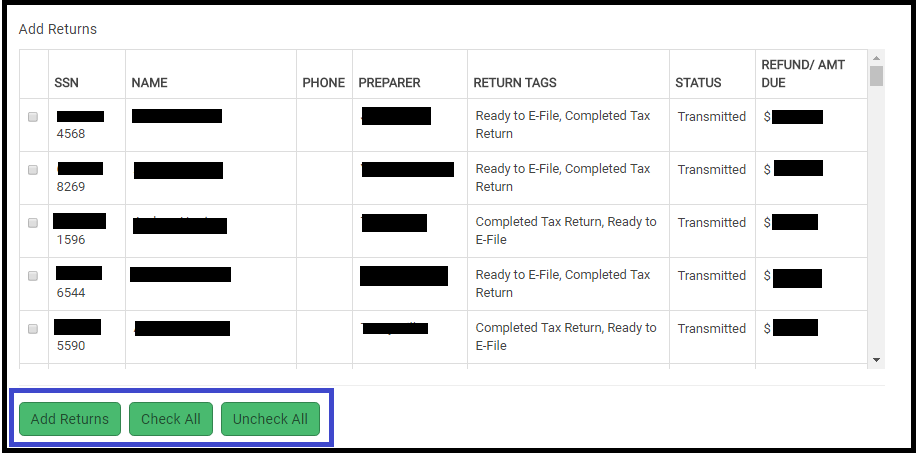
5. Once all the selections are made, click Add Returns
6. close the dialog box by selecting the X in the upper right corner
These returns are now available for you to resend.
Blog posted 01/29/2018
F1040-NR users claiming a tax treaty exemption for W-2 income this year are now eligible to e-file those returns. If eligible to claim this exemption when completing a 1040NR return, got to Basic Information > Schedule OI > General Information. To claim the treaty exemption, you first must check the box “Check if you were subject to tax in a foreign country on U.S. exempt income” then enter the applicable amount of wages from the W-2. The below red text will be removed now that the e-file block has been removed for 1040-NR returns claiming the treaty exemption for wages. Don’t worry, you CAN e-file these returns.
After completing the applicable information within the Schedule OI > General Information, select Continue to complete the rest of the Schedule OI’s menus, such as “Income Exempt from Tax”. This is where you will select the country and Tax Treaty Article to support the exempt wages.

Scenario: There are forms and/or worksheets that are printing in the print sets “assigned” to my site by TaxSlayer
Solution: You will need to create a custom print set at the site. Click to view Video
Blog Posted 01/29/2018
The site will be placed in maintenance on Monday, January 29th at 5:00am Eastern to release a series of updates.
Scenario: Select a print set for a return from the Review Returns menu
Problem: The PDF contains all forms, including the cover page, worksheets, etc.
Workaround: Select a print set from the Client List or from inside the return
Solution: We will fix this in a future update.
Note: This only occurs when the print set is selected under Review Returns

Blog Posted 01/27/2018
Below is a reminder of the message sent out by SPEC last week. Today is the opening day for many sites to service your taxpayers on EITC Awareness Day.
We have an additional report that will list all returns (regardless of status) that you may want to run prior to electronically filing the return. It also includes the state abbreviation of any state listed on the return.

This is listed under Reports>>Management Reports
Make sure you select 2017 and select the EFIN even if you are running it at your site level.
VITA/TCE sites that prepared tax returns prior to January 29th will now be able to transmit those created returns. To ensure these returns are re-calculated based on the updated forms and instructions released by IRS to software vendors, each tax return must be opened prior to transmitting to TaxSlayer. This will ensure previously prepared tax returns have the updated IRS forms calculations applied prior to transmission and reduce the need of VITA/TCE sites having to prepare amended returns.
Sites are strongly encouraged to run a Site Production Detail management report (titled: Pro Web Returns – Detailed Return Report) listing all returns prepared prior to January 29th to assess possible return calculations changes. This report will reflect the original return calculations for refund, credit, or balance due dollar amounts. Sites may also review the “Client Return History” to determine if the refund or balance due changed on a tax return.
Taxpayers must sign a new declaration (Form 8879, IRS e-file Signature Authorization) if the electronic return data on individual income tax returns is changed after taxpayers signed the original, and the amounts differ by more than either $50 to “Total income” or “AGI,” or $14 to “Total tax,” “Federal income tax withheld,” “Refund,” or “Amount you owe.” See Publication 1345, Handbook for Authorized IRS e-file Providers of Individual Income Tax Returns, for additional guidance.
The following information was distributed in a Fact Sheet in October, and as we move into preparing live returns, we wanted to highlight some troubleshooting tips when preparers at your site are experiencing slowness (i.e. taking a long time between page refreshes, your browser title displaying the words “not responding” in parenthesis, the screen freezing, etc.)
Note: Check the blog or message center to see if we have a post regarding maintenance, a system wide issue, or an issue that is effecting many users. These would typically be the Summary/Print page not displaying a calculation, a PDF not generating, or something very specific not loading.
There are several variables that can create slowness at a local level:
It is to note that if we detect any type of interruption, we terminate the session. This is an enforced security protocol to ensure the integrity of taxpayer data. For example: If your connection is slow and taking a long time to exchange data packets, we will terminate the session.
For sites experiencing slowness, send the following information with the Subject line “Speed Test” to [email protected]