Tag: Pro Online

Pro Online: Taking Advantage of the Rejected Clients Feature

30 Jan 18
Kim Manuel
,
No Comments

Validation errors have been added to the Rejected Clients feature located on your Welcome page.

Rejected Federal Clients

  • Select the Rejected Clients button

The year defaults to 2017, but can be changed to 2016.  The selection criteria defaults to Rejects.  Selecting rejects renders a list of your rejected returns, along with the reject code.

  • View the list of rejected returns.  The example below is for the default 2017 Rejected Clients

  • Selecting the reject code gives you the reject definition.  It does NOT give  you the specific entry that is rejected at this point.  For example, it would not give you the specific dependents SSN.  However, printing your IRS Acknowledgements to HTML will give you the rejected Data Value.  Detail information is also listed on the Client Status screen.
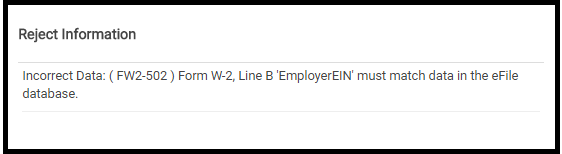
  • Click Select to open and correct the rejected return.  Remember, you can retransmit a rejected return from the Submission page if you have the appropriate rights, otherwise, you must use the Add Return feature to add them to the Transmission list.

Validation errors

  • Select the Rejected Clients button

The year defaults to 2017, but can be changed to 2016 (2015 coming soon).  The selection criteria defaults to Rejects.  Change the drop down to Validation Errors.  This prevents you from having to contact support to determine why prior year returns failed validation.

  • View the list of returns with validation errors .  The example below is for the default 2017 Validation errors

  • Selecting the error code link gives you the validation reason and when possible a helpful hint on how to resolve the error.
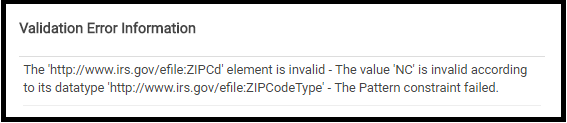
  • Click Select to open and correct the validation error.  There are times when the return does not need to be opened to fix the error, just retransmitted.  We typically post these instructions on the Blog.

Blog posted 01/30/2018


Pro Online 2017: Disaster Area Implementation

30 Jan 18
Kim Manuel
, ,
No Comments

The IRS issued final forms and instructions to software vendors last week.  We are in the final implementation of delivering phase I to production.  This phase will include the ability to designate the disaster area in the Personal Information Section.


You will then be able to enter the inputs from their TY2016 return into the application.  Once the Disaster Designation has been made in Basic Information, a menu option will appear at the bottom of the main income menu titled, “Prior Year Income for Hurricane Disaster Victims”. Preparers will have the option to let the program determine the most advantageous calculation for the return or choose to use the prior year figure.

This phase I delivery will also include the changes to charitable contributions as it applies to Disaster Areas. Within the Itemized Deduction menu > Gifts to Charity, users will first complete the “Cash Gifts to Charity”. After completing this menu, a new menu will appear labeled, “Cash Donations to Disaster Relief Charities”. This is where the preparer will designate the amount of cash donations made towards disaster relief efforts.

Phase II will implement changes that impact Form 8606

Blog posted  01/30/2018


Pro Online/Desktop 2017: Massachusetts Acknowledgements

29 Jan 18
Kim Manuel
, , ,
No Comments

We received the following from the MA Dept of Revenue

Subject: Massachusetts Acknowledgements

Please remember that during the first few days of the tax year 2017 filing season, acknowledgements may take 24-48 hours to issue.

Blog Posted 01/29/2018  4:18 pm

Pro Online 2017: Marking the Return Complete

29 Jan 18
Kim Manuel
,
No Comments

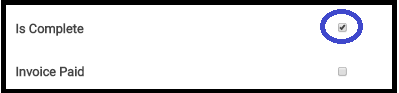
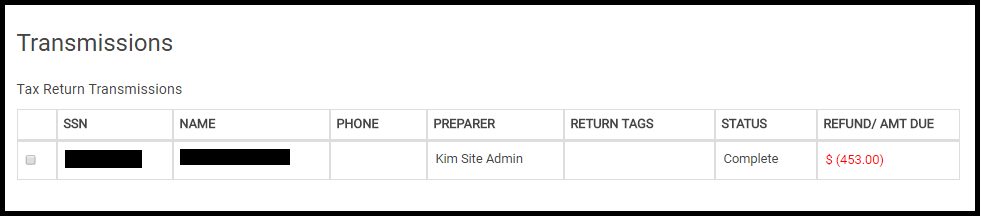
Marking a return Complete on the Submission page in the E-file section changes the return status to Complete and the return will be displayed in the transmission screen.

Blog posted 01/29/2018

Pro Online 2017: Validation error for ZIPCd element is invalid (UPDATED 1:23 PM EST)

29 Jan 18
Kim Manuel
,
No Comments

Scenario:  You have transmitted returns and your status is remaining “Transmitted”

Navigate to Reports and run the “Validation Erros” Report to see if you are receiving the following error:

Note:  It will be the State abbreviations of your specific site.

Updated info: Next, navigate to the Configuration>>ERO Setup and verify that the zip code field for both have the zip code and not your state abbreviations. We automatically uploaded this information to correct the zip code in ERO setup at approximately 1:00 pm EST.

The zip code we entered was based on the order we received from the IRS.  Make the appropriate correction to the zip code field.

How to I send these returns after the correction to setup has been made?

Note:  You DO NOT have to open each return.

  1. Run the Validation Errors report first to identify the taxpayers
  2. Navigate to Transmissions
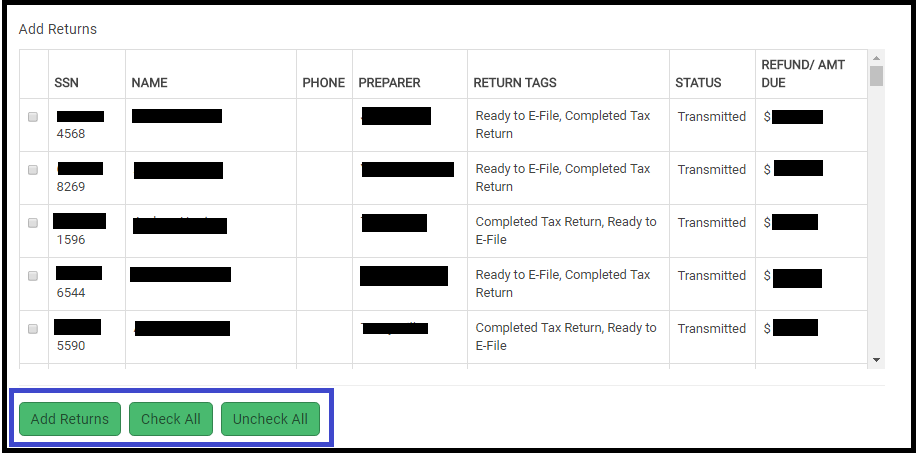
  3. Select Add Returns

4.  Select the returns that received the validation error (most likely all that are listed with the status of Transmitted)

5.  Once all the selections are made, click Add Returns

6. close the dialog box by selecting the X in the upper right corner

These returns are now available for you to resend.

Blog posted 01/29/2018

1040NR Returns Claiming Treaty Exempt Wages are Eligible for E-file

29 Jan 18
Craig Smith
,
No Comments

F1040-NR users claiming a tax treaty exemption for W-2 income this year are now eligible to e-file those returns. If eligible to claim this exemption when completing a 1040NR return, got to Basic Information > Schedule OI > General Information. To claim the treaty exemption, you first must check the box “Check if you were subject to tax in a foreign country on U.S. exempt income” then enter the applicable amount of wages from the W-2. The below red text will be removed now that the e-file block has been removed for 1040-NR returns claiming the treaty exemption for wages. Don’t worry, you CAN e-file these returns.

After completing the applicable information within the Schedule OI > General Information, select Continue to complete the rest of the Schedule OI’s menus, such as “Income Exempt from Tax”. This is where you will select the country and Tax Treaty Article to support the exempt wages.

Pro Online: Creating a Custom Print Set

29 Jan 18
Kim Manuel
, ,
No Comments

Scenario:  There are forms and/or worksheets that are printing in the print sets “assigned” to my site by TaxSlayer

  • Master Print
  • Master Print (2 8879s)
  • Quality Review

Solution:  You will need to create a custom print set at the site.  Click to view Video

Blog Posted 01/29/2018

Pro Online 2017: Printing from Review Returns menu

27 Jan 18
Kim Manuel
,
No Comments

Scenario: Select a print set for a return from the Review Returns menu

Problem:  The PDF contains all forms, including the cover page, worksheets, etc.

Workaround:  Select a print set from the Client List or from inside the return

Solution:  We will fix this in a future update.

Note:  This only occurs when the print set is selected under Review Returns

Blog Posted 01/27/2018